IR302 Blocking Unknown Devices (WIRED)
Problem Scenario
Client has
a IR302 router, and an authorized card reader and a controller are connected to
the router, for regular operation.
But
recently there are two more unknown devices connected to the router via RJ45
(wired), and they consume some internet data. Client wants to block them.
Solution
Step 1: find the devices
1. In
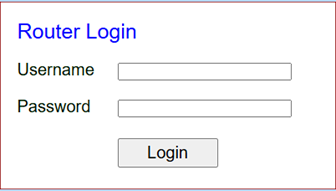
the Internet Browser address bar, enter 192.168.2.1 (default router Web UI
address). It will prompt the Router Login as shown below
2. Use
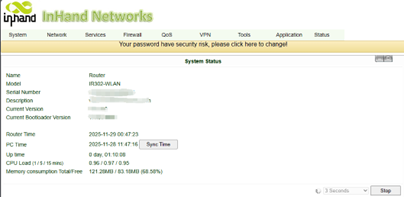
your username and password to login. Unless changed, the default username and
password are printed at the back of the IR302 router device. For example,
username/password: adm/123456. If login successes, it will come to this
interface:
3. Navigate
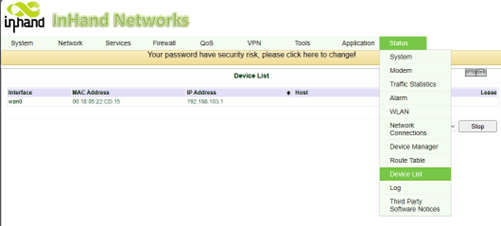
to Status -> Device List to see what devices are connected to
your router currently, as shown below, the write down the MAC addresses of all
devices.
Step 2: create rules
1. Assign
IP Addresses to the devices MAC addresses. (Because MAC addresses are unique
and physical, but IP addresses are dynamic and changeable). Via Firewall
-> MAC-IP Bundling to access the interface.
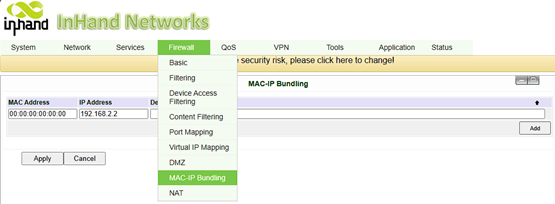
Then use the MAC Addresses and IP Addresses you got from the previous
step to fill the areas.
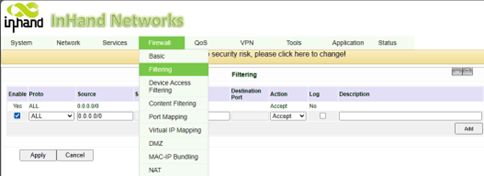
2. Blacklist
or whitelist the IP addresses that bundled with the MAC addresses assigned in
the previous step, by navigating to Firewall -> Filtering
interface as below.
3. Under
the Action column, you can choose if you want to allow or block this IP
address to visit the internet, by selecting Accept or Block.
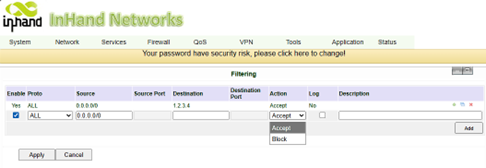
Proto: leave
it ALL
Destination:
leave it blank.
After finishing one IP address, click Add button on the bottom
right corner to add another IP address, until you finish setting up your
filtering rules.
Then click Apply button on the bottom left corner.
The new rules will be in effect immediately and automatically without
restarting.
Topic Participants
alfred.wang