CR602 User Manual
Declaration
Thank you for choosing our company's product! Before use, please carefully read this user manual. By complying with the following statements, you will help maintain intellectual property rights and legal compliance, ensuring that your user experience aligns with the latest product information. If you have any questions or need written permission, please feel free to contact our technical support team.
- Copyright Statement
This user manual contains copyrighted content, and the copyright belongs to InHand Networks Technology and its licensors. Without written permission, no organization or individual may excerpt, copy any part of the content of this manual, or distribute it in any form.
- Disclaimer
Due to ongoing updates in product technology and specifications, the company cannot guarantee that the information in the user manual is entirely consistent with the actual product. Therefore, no disputes arising from any discrepancies between the actual technical parameters and the user manual are accepted. Any changes to the product will not be notified in advance, and the company reserves the right to make the final changes and interpretations.
- Copyright Information
The content of this user manual is protected by copyright laws, and the copyright belongs to InHand Networks and its licensors, reserving all rights. Without written permission, the content of this manual may not be used, copied, or distributed without authorization.
Conventions
Symbol | Indication |
[ ] | Indicating a functional module or menu, for example: under the [Status] menu. |
“ ” | Referring to a button label, for example: click the "Add" button. |
〉 | Multiple-level menus are separated by "〉". For example, "File〉New〉Folder" represents the "Folder" menu item under the "New" submenu of the "File" menu. |
Cautious | Please pay attention to the following precautions during the operation. Improper action may result in data loss or device damage. |
Note | The note contains detailed descriptions and helpful suggestions |
Technical Support
Email: support@inhand.com
URL: www.inhand.com
1 Overview
The 5G cellular network greatly enhances network flexibility and convenience, enabling businesses to effortlessly establish a competitive next-generation 5G network for their digital business development. Our cloud-managed 5G CPE CR602 series provides a high-speed, secure, and user-friendly 5G network, empowering businesses for the future.
The CR602 features a 7.01Gbps downlink 5G cellular network, a 3000Mbps Wi-Fi 7 wireless network, and 2.5Gbps wired network access capabilities, swiftly creating a full gigabit network, enhancing network performance, and refreshing your network experience.
Combined with the InCloud Manager, the CR602 forms a cloud-managed network solution that offers global customers high-speed and secure network access, as well as simple and convenient network management services to empower your core business.
This manual will help you understand the product and configure device functionalities. Please carefully follow the instructions to prevent any data loss or device damage.
2 Hardware
2.1 Indicator Description
Indicator | Definitions |
System | Off --- Power off Blinking Green --- Device is starting up Steady Green --- Device is working normally Blinking Yellow --- Device is upgrading |
Network | Off --- Cellular disabled Blinking Green --- Dialing up Blinking Yellow --- Dialing error Blinking Red --- No SIM card, unable to read SIM card or modem error Steady Green --- Dialed up, signal is good Steady Yellow --- Dialed up, signal is medium Steady Red --- Dialed up, signal is poor |
Wi-Fi | Off --- Wi-Fi disabled Blinking Green --- Wi-Fi connected, data transmitting Steady Green --- Wi-Fi enabled |
Battery | Blinking --- Charging Steady --- Discharging Green --- 20% < battery level ≤ 100% Red --- 0 < battery level ≤ 20% |
2.2 Restoring to Default Settings via the Reset Button
During product operation, press and hold the Reset button for 10 seconds. The System LED will start blinking yellow, indicating that the factory reset has been successfully executed.
2.3 Default Settings
No. | Function | Default Settings |
1 | Cellular | Enable Dual SIM Cards, using SIM1 by default. |
2 | Wi-Fi | 1. Wi-Fi 2.4G access point enabled, SSID: Prefixed with "CR602-", followed by the last 6 digits of the wireless MAC address. 2. Wi-Fi 5G access point enabled, SSID: Prefixed with "CR602-5G-", followed by the last 6 digits of the wireless MAC address. 3. The authentication method is WPA2-PSK. 4. The password for both is the last 8 digits of the serial number. |
3 | Ethernet | 1. Enable 1 WAN port and 1 Ethernet port. 2. IP Address: 192.168.2.1,Subnet Mask: 255.255.255.0 3. DHCP server enabled, with an address pool from 192.168.2.2 to 192.168.2.254 for automatic IP address assignment to connected devices. |
4 | Management Services | Local HTTP and HTTPS are enabled with port numbers 80 and 443 respectively. Disable access from the cellular network. |
5 | Username and Password | Please check the label on the back of the product. |
3 Safety Precautions
1. Please use the provided original power adapter to prevent any potential device damage resulting from using incompatible power adapters.
2. During installation, ensure the device is positioned away from areas with strong electromagnetic interference and maintains a safe distance from high-power equipment. After installation, verify that the device is securely mounted to prevent accidental falls and potential damage.
3. Make certain that the device operates within the temperature and humidity specifications outlined in the product manual based on its operating environment.
4. Conduct regular inspections of device cables, which include Ethernet cables and power adapter connections. Keep the cables clean and promptly replace any cables showing damage.
5. When cleaning the device, refrain from directly spraying chemical agents onto the device's surface to avoid potential harm to the housing or internal components. Utilize a soft cloth for cleaning purposes.
6. Do not attempt to disassemble, repair, or modify the device on your own, as this may lead to safety risks and void warranty coverage.
7. Regularly update the device's software version to access the latest security patches and feature upgrades. Always acquire firmware versions from official and reputable sources to prevent potential data loss or device damage. Utilizing unofficial or unauthorized firmware can result in compatibility issues, instability, and security vulnerabilities.
8. Securely store the device's login password and avoid disclosing it to unauthorized individuals to mitigate security risks.
4 Login and Access to the Internet
4.1 Install the SIM card
- Using an embedded SIM
Activate the ICCID shown on the label following the carrier’s guide.
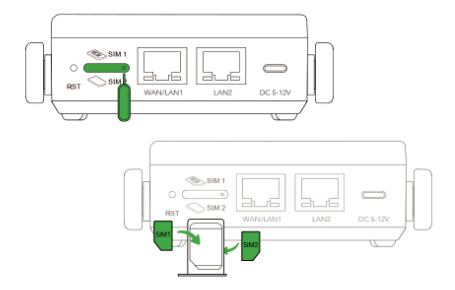
- Using external Nano SIMs
Use the pin to remove the SIM card tray. Insert the Nano SIM card, then slide the tray back into the device.
4.2 Power on
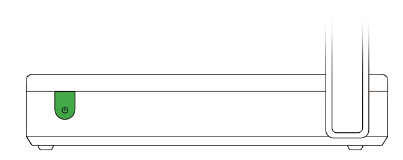
- Power via battery
Press and hold the ON/OFF button for 3 seconds to power on. For the first startup, connect the USB-C adaptor, the press the ON/OFF button.
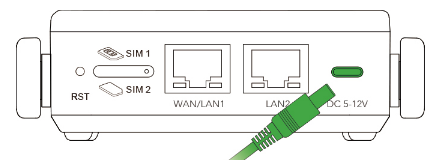
- Power via adaptor
Simply connect the USB Type-C adaptor to power on.
Warning:
Avoid using or leaving the device in extremely high temperatures (e.g. direct sunlight or inside a hot vehicle). Exposure to such conditions may cause overheating, fire, or reduced performance and lifespan.
4.3 Connect via Ethernet Cable
After powering on the device, connect your PC to the device's LAN port using an Ethernet cable, and perform the following steps on your PC.
The device's LAN port has DHCP Server functionality enabled by default. Once the PC has automatically obtained an IP address, please ensure that your PC and CR602 are in the same address range.
If your PC fails to obtain an IP address automatically, please configure it with a static IP address and the following parameters:
- IP Address: 192.168.2.x (Choose an available address within the range of 192.168.2.2 to 192.168.2.254).
- Subnet Mask: 255.255.255.0.
- Default Gateway: 192.168.2.1.
- DNS Servers: 8.8.8.8 (or your ISP's DNS server address)
Enter the default device address 192.168.2.1, in the browser's address bar. After entering the username and password(check the label on the back of the product), access the device's web management interface. If the page shows a security warning, click on the "Hide" or "Advanced" button and select "Proceed" to continue.
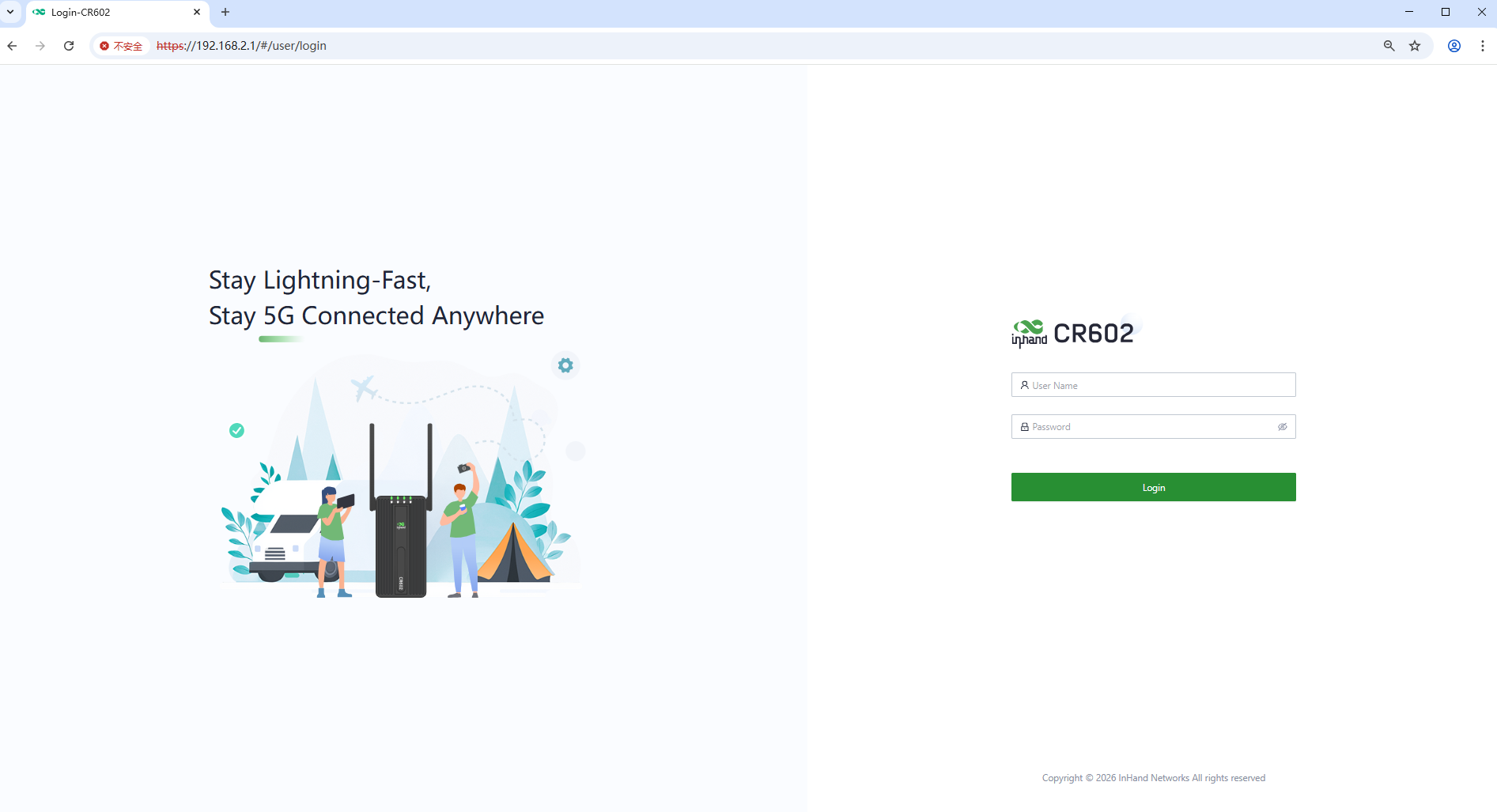
Fig.4-3-1 Web login interface
Check the network in the “Dashboard〉Interface Status”. The device connects to the Internet successfully if the “Cellular” or “WAN” icon turns green. Click the corresponding icon to view interface information such as signal strength, IP address and traffic consumption.
If this device cannot connect to a network, click “Internet〉Uplink Table〉Edit ” to set up network parameters. The device enables the dial-up function by default, please wait for a few minutes to go online, and re-enable the dial-up if it is not dialed.

Fig.4-3-2 Edit the Cellular interface
5 Web Configuration
5.1 Dashboard
Click the [Dashboard] in the left menu, and you can check the device’s information, Interface Status, Traffic Statistics and Wi-Fi information of the device.
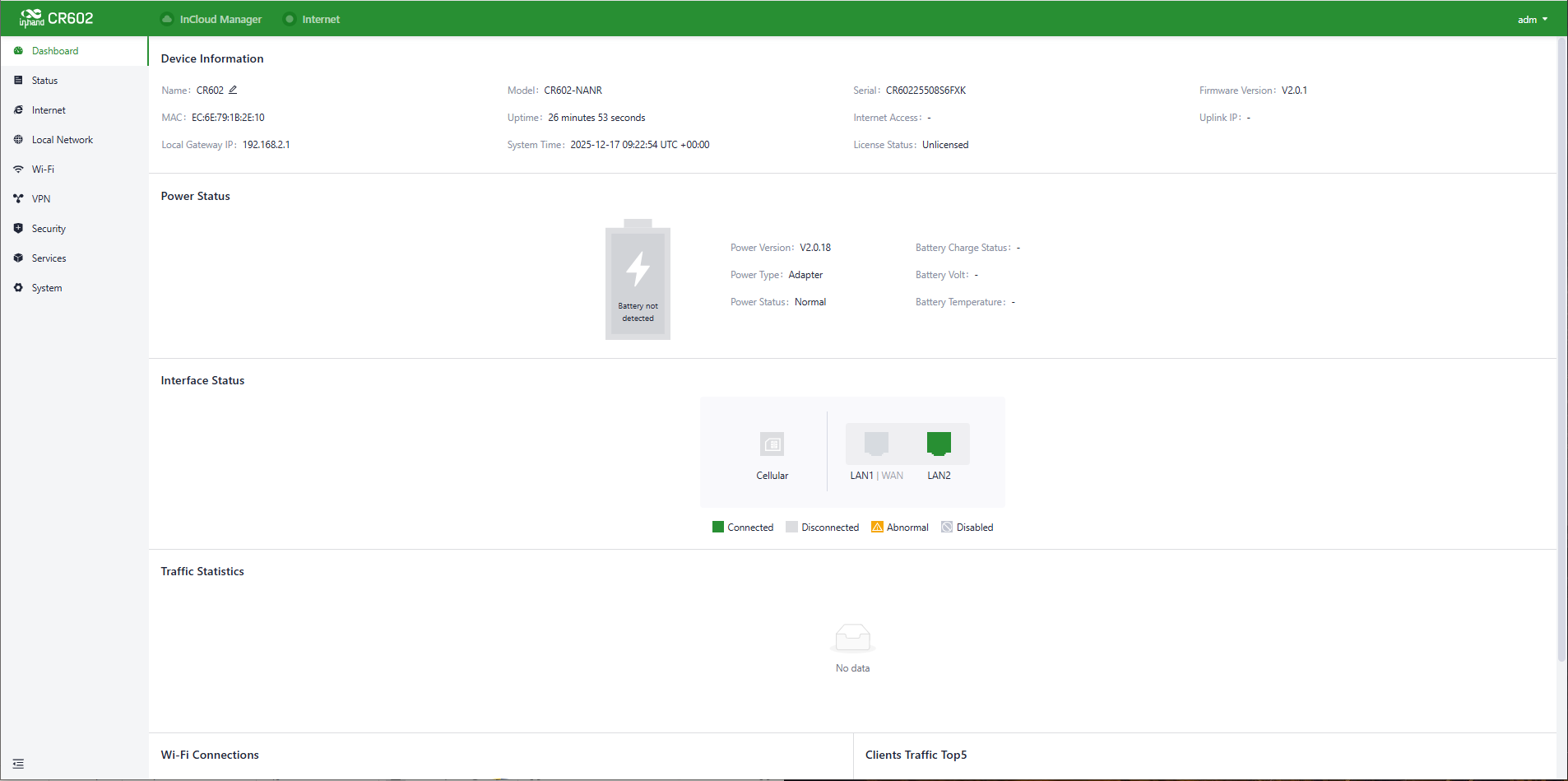
Fig.5-1 Dashboard interface
5.1.1 Device Information
In the “Dashboard〉Device Information” interface, you can check the details about the device name, Model, S/N, Firmware Version and so on.

Fig. 5-1-1 Device Information panel
- Name: Identifies the device's name, default is "CR602”, but it can be modified.
- MAC Address: Identifies the device's physical MAC address.
- Local Gateway IP: The default subnet gateway address for the device.
- Model: The specific model of the device.
- Uptime: The device's running time since power-up.
- System Time: Displays the device's time zone and system time.
- Serial: A unique code that identifies the device, which can be used for indexing or adding to a platform account.
- Internet Access: The upstream interface used for device connectivity.
- License Status: Information about the license applied to the device, which may include the Small Star Cloud Manager Basic or Professional version.
- Firmware Version: The current software version used by the device.
- Uplink IP: The IP address of the upstream interface used for device connectivity.
5.1.2 Power Status
In the "Dashboard > Power Status" feature, you can view the power status of the device.

Fig. 5-1-2 Power Information panel
5.1.3 Interface Status
In the "Dashboard > Interface Status" feature, you can visually check the operational status of each interface. By clicking on the "Interface icon," you can view detailed information about each interface in a pop-up box on the right side of the interface.
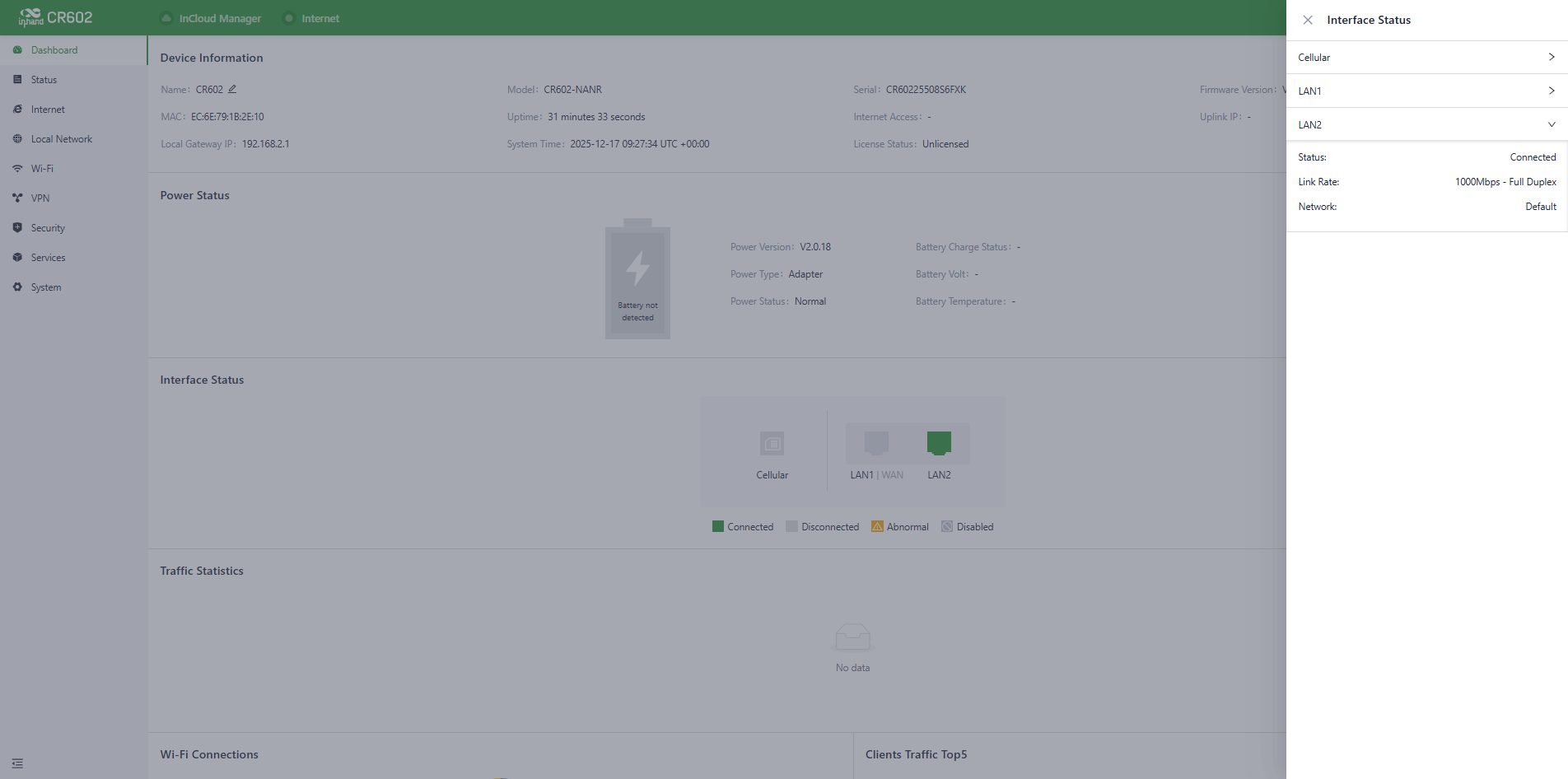
Fig. 5-1-3 Detailed port information
5.1.4 Traffic Statistics
Users can use the "Dashboard > Traffic Statistics" feature to monitor the usage of traffic on each upstream interface since the router was powered on. The traffic statistics data will reset after a device reboot. If you need to view historical traffic records, you can do so on the corresponding device's details page in the InCloud Manager Platform.

Fig. 5-1-4 Traffic statistics
5.1.5 Wi-Fi Connections
In the "Dashboard > Wi-Fi Connections" feature, users can view the number of currently enabled SSIDs on the CR602 and the number of clients connected per SSID.

Fig. 5-1-5 Wi-Fi Connections panel
5.2 Status
Click on "Status" in the left-hand menu to access the status interface, where you can view information about the device's upstream links, cellular signal, clients, VPN, events, logs, and more.
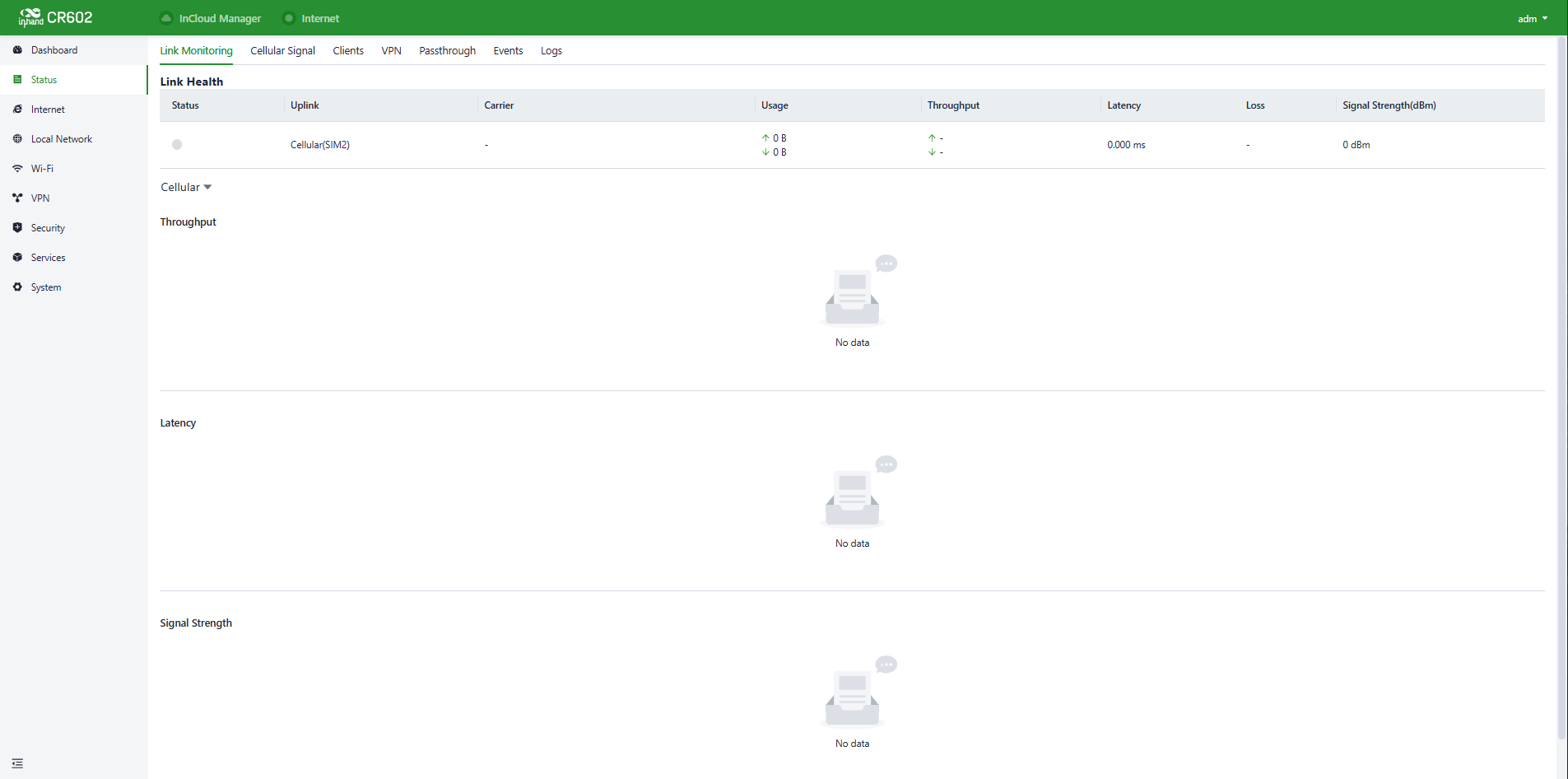
Fig. 5-2 Status interface
5.2.1 Link Monitor
Users can monitor the health status of upstream links and access information such as throughput, latency, packet loss, signal strength, and more for each interface through the "Status > Link Monitoring" feature.
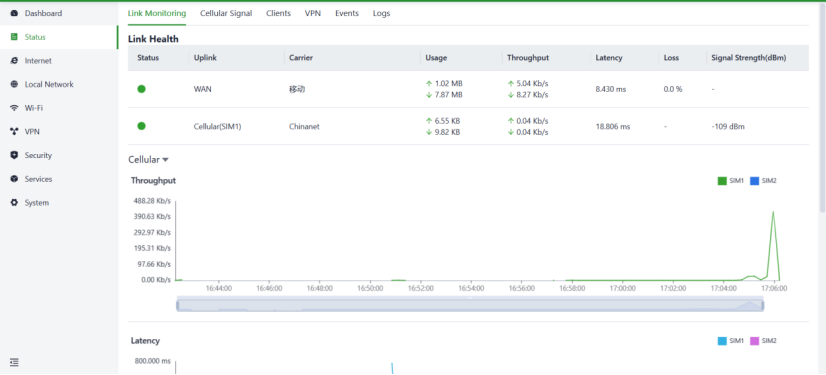
Fig. 5-2-1 Link monitor panel
5.2.2 Cellular Signal
Users can check the signal strength as well as parameters like RSSI, SINR, RSRP, and more of the cellular dial-up through the "Status > Cellular Signal" feature.
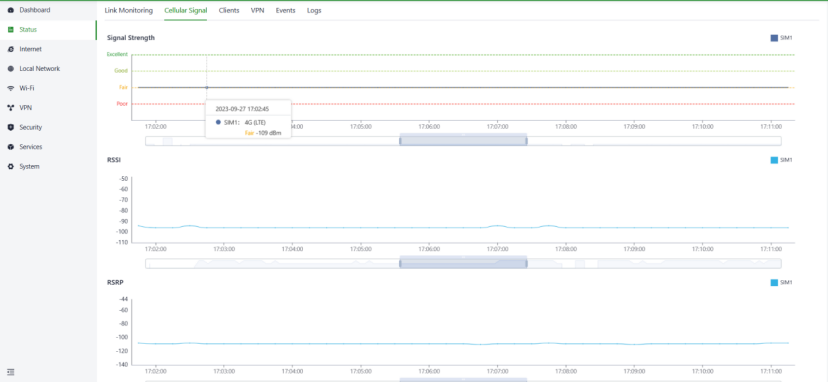
Fig. 5-2-2 Cellular Signal panel
5.2.3 Clients
Users can access detailed information about wired/wireless clients connected to the router, including details like name, IP address, MAC address, VLAN, connected subnet, traffic usage, online duration, and more through the "Status > Clients" feature.
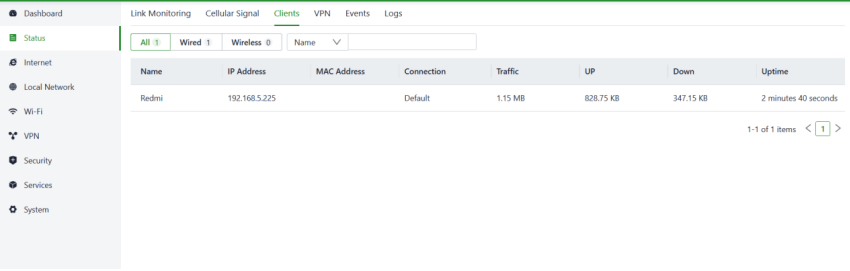
Fig. 5-2-3 Clients panel
5.2.4 VPN
Users can view information about IPSec VPN and L2TP VPN, including status, traffic, and the duration of the most recent connection through the "Status > VPN" feature.

Fig. 5-2-4 VPN status panel
5.2.5 Passthrough
Users can view information about Passthrough through the "Status > Passthrough" feature.
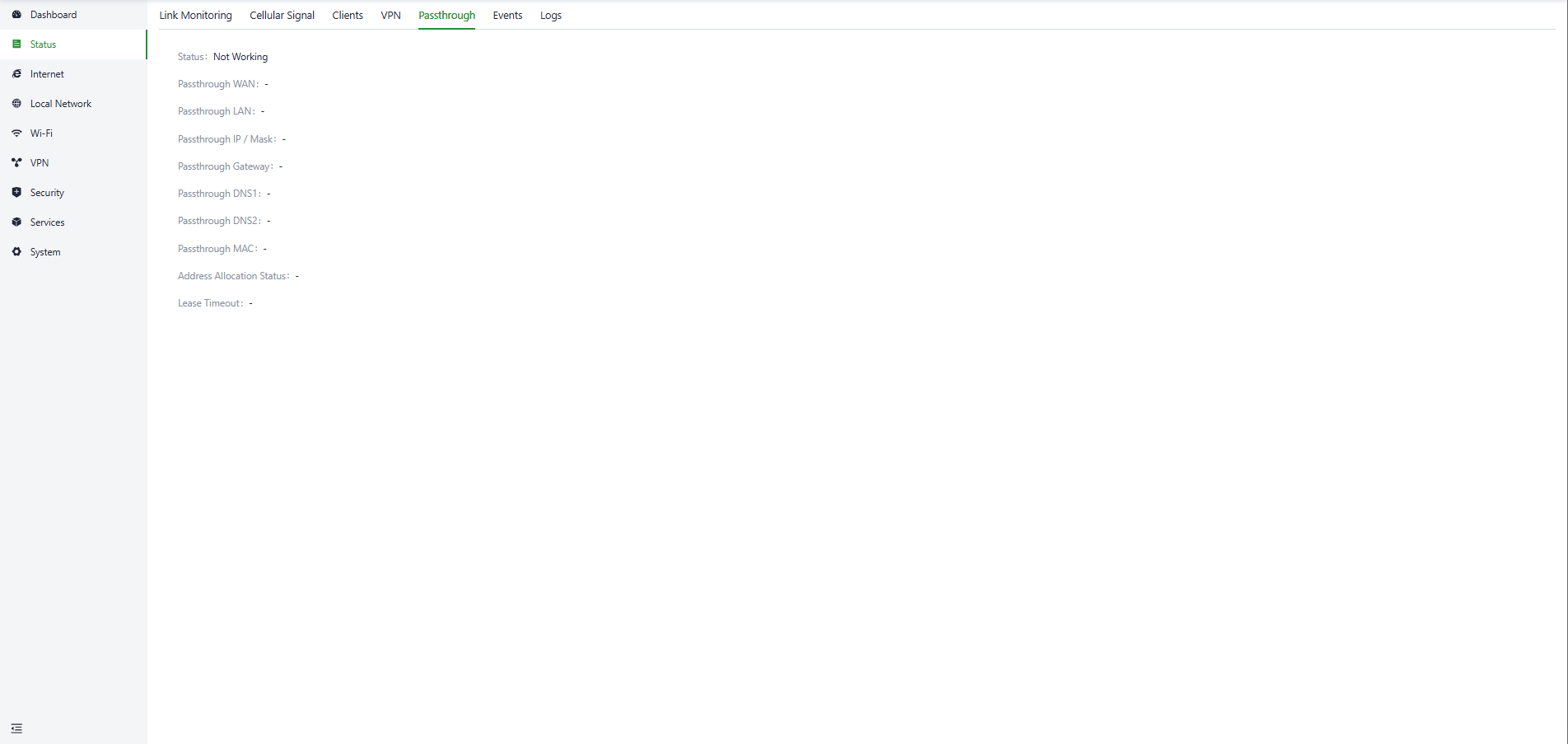
Fig. 5-2-5 Passthrough status panel
5.2.6 Events
This device will record event logs, including user login, configuration changes, link changes, reboot, and other events. You can check that information in the “Status〉Events” interface.
You can view specific events on a particular date by setting the start and end dates or choosing the event type.
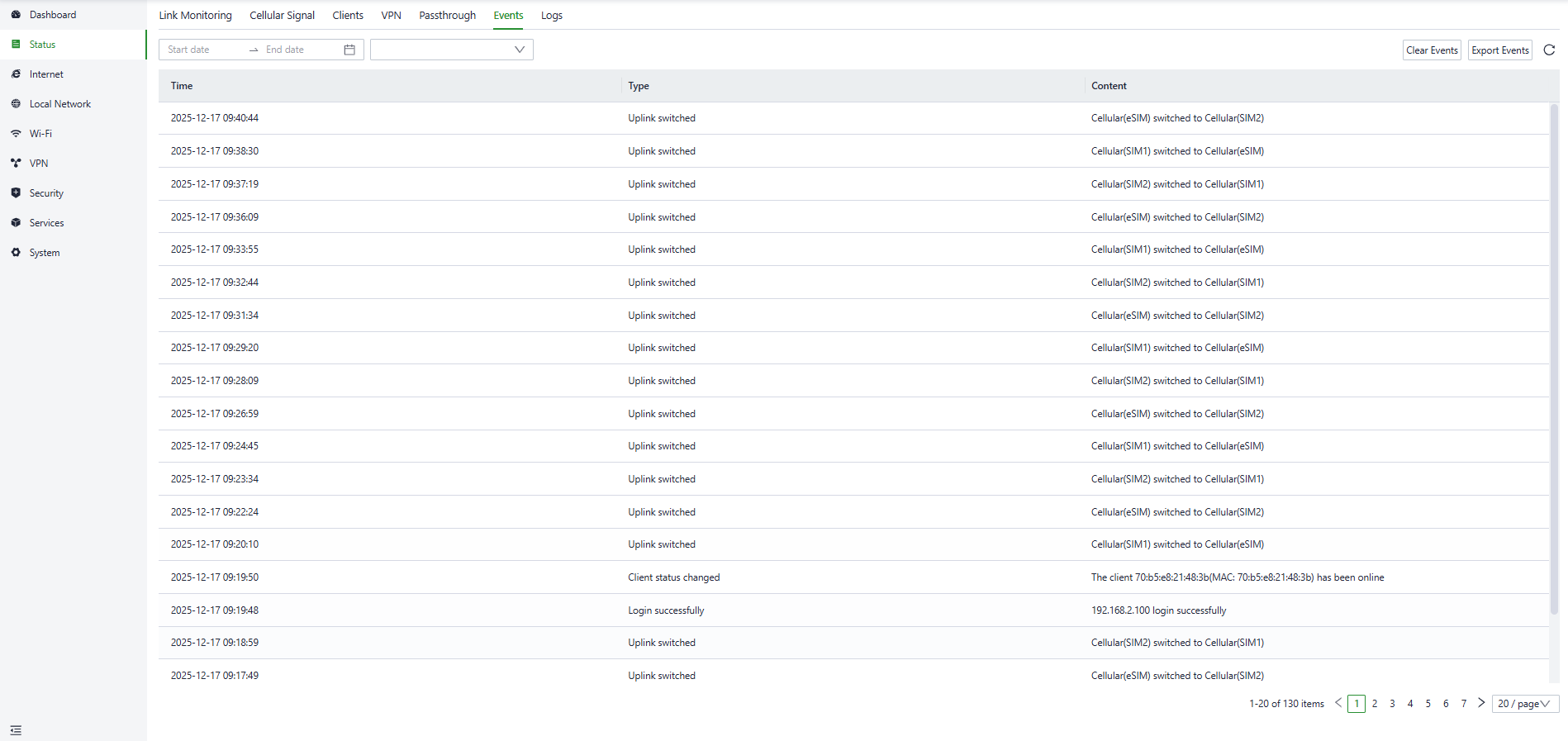
Fig. 5-2-6 Events interface
5.2.7 Logs
The device will record the logs generated during operation to facilitate fault localization and diagnosis when the device encounters malfunctions.
You can check the recorded logs in the “Status〉Logs” interface, at the same time, you can check the specific logs on a particular date by setting the start and end dates or setting the keyword.
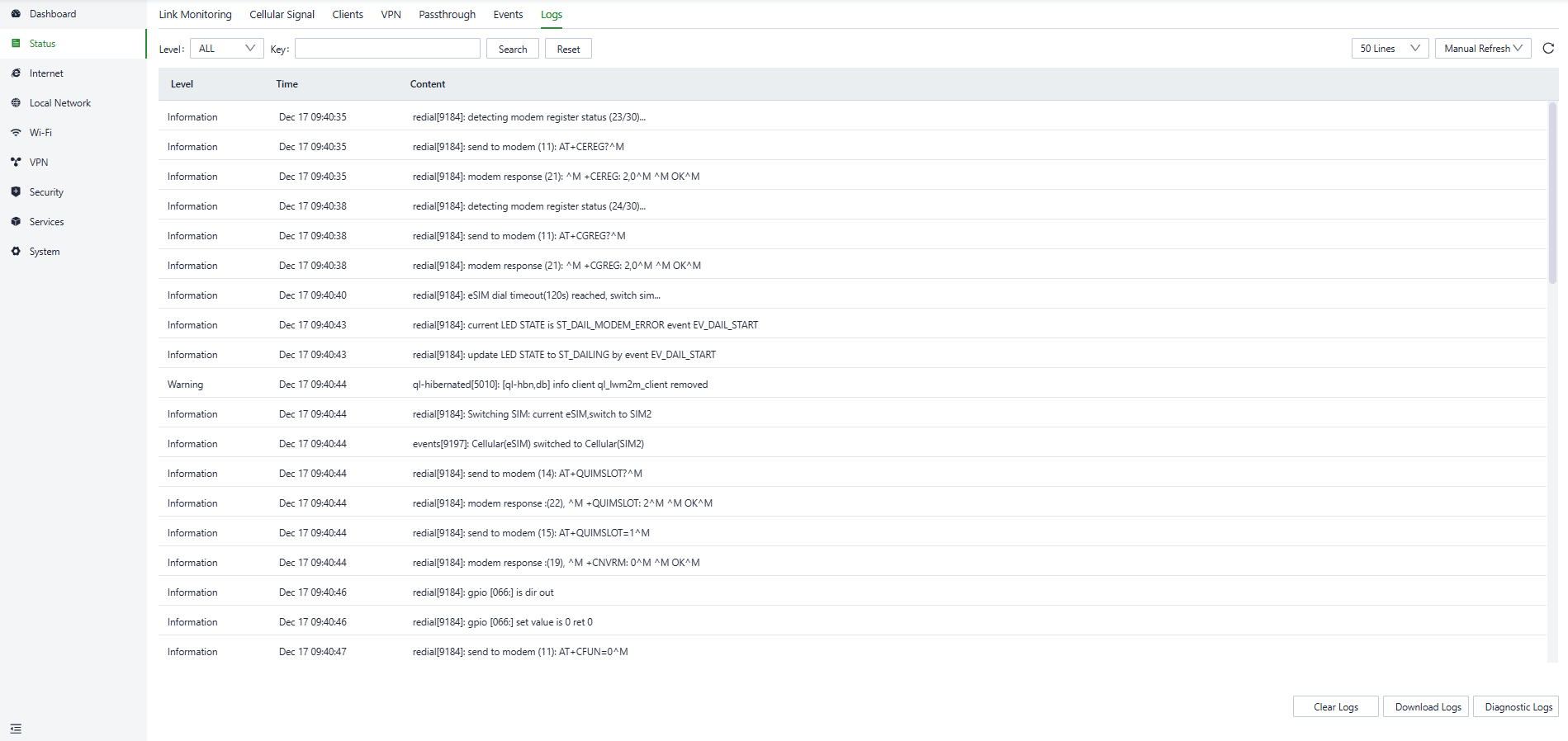
Fig. 5.2.7 Logs interface
- Download Logs: Download the device's operational logs.
- Download Diagnostic Logs: Download the device's diagnostic logs, which include system operation logs, device information, and device configurations.
- Clear Logs: Clear the device's operational logs; this does not clear the device's diagnostic logs.
5.3 Internet
Click “Internet” in the left menu to check and configure the uplink interfaces and multi-link work mode of this device.
Please exercise caution when modifying the upstream link settings as it may result in network interruption.
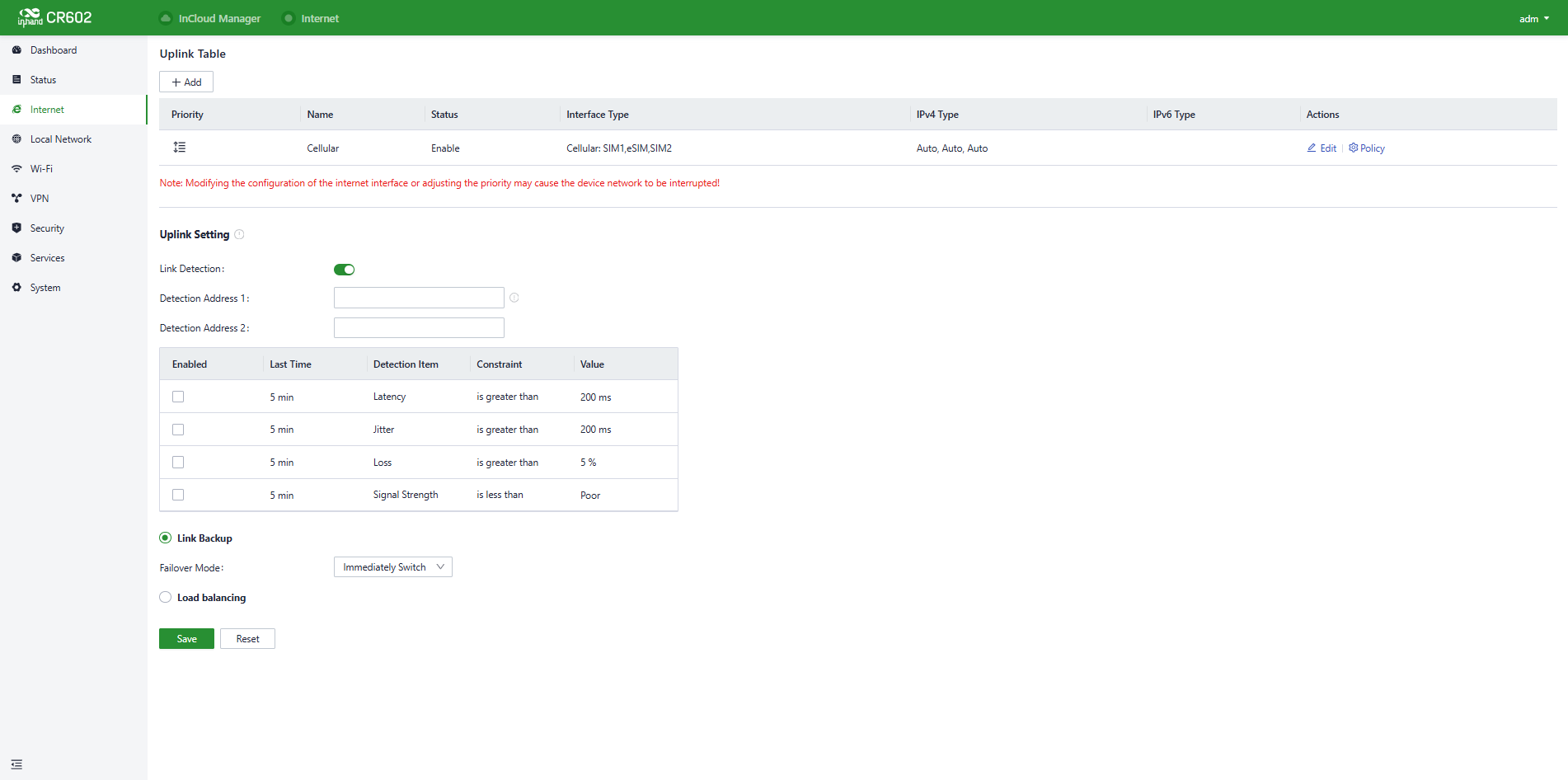
Fig. 5-3 Internet Page
5.3.1 Uplink Table
Users can edit WAN1 and Cellular interfaces and add/edit/delete WAN2 and Wi-Fi (STA) interfaces in the "Internet > Uplink Table". You can drag the "Priority" icons to adjust the priority of each interface. Priorities are arranged from top to bottom, determining the current upstream interface used by the device.
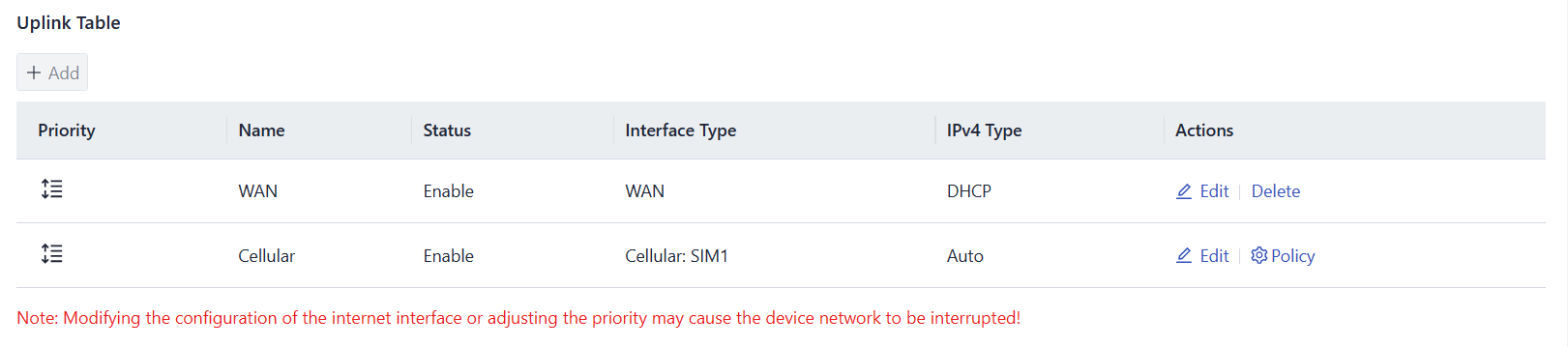
Fig. 5-3-1-a Uplink Table
Cautions:
- The WAN interface will be switched to the LAN1 interface. Routing, policy routing, inbound/outbound rules, port forwarding, DDNS, and VPN related to the WAN interface will be deleted.
The WAN port of the device supports three different internet connection modes.
- DHCP: The DHCP service is enabled on the WAN port by default which means this device cannot connect to the Internet immediately if the upstream device connected to the WAN port does not have the DHCP server enabled.
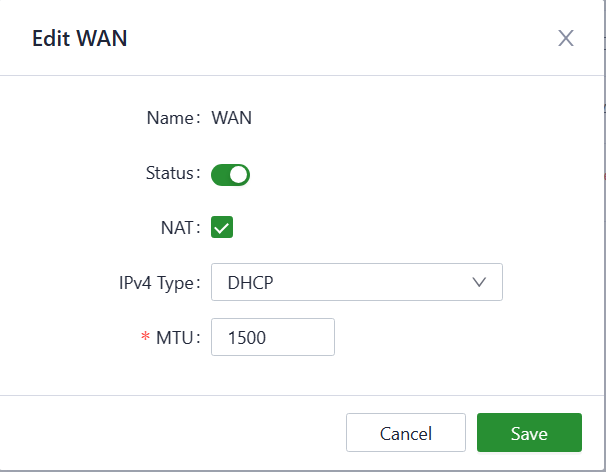
Fig. 5-3-1-b DHCP Client
- Static IP: You can assign a static IP address obtained from the ISP or upstream network device manually.
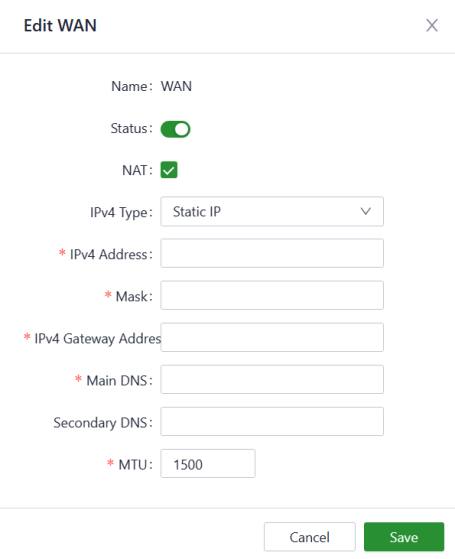
Fig. 5-3-1-c Set the static IP
- PPPoE: Users can set the PPPoE service on the WAN port and then this device can dial up to the Internet through the broadband service.
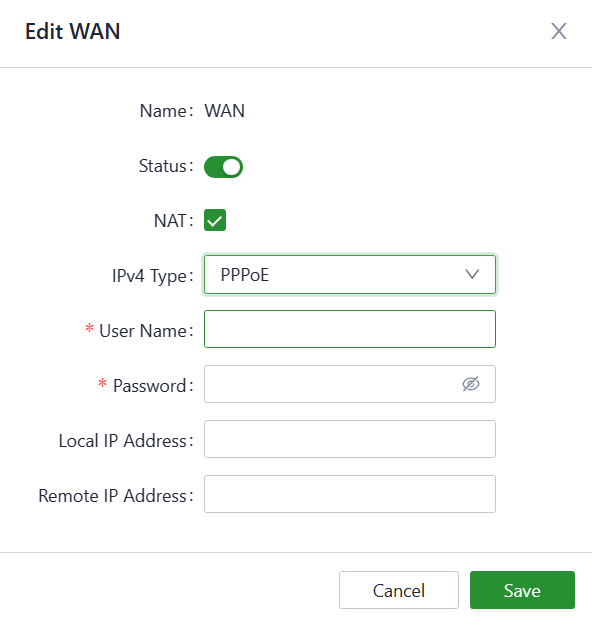
Fig. 5-3-1-d Set the PPPoE service
The Cellular interface supports four working modes of sim cards, you can configure the sim card working mode and other dial-up parameters in “Internet〉Uplink table〉Cellular〉Edit”.
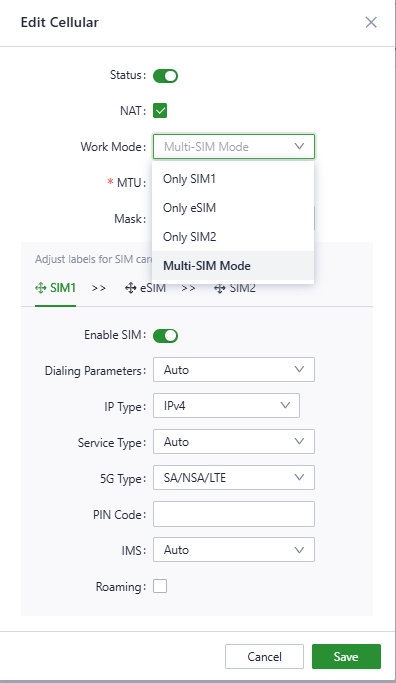
Fig. 5-3-1-e Configure the dial-up parameters
Also, you can configure the sim card policy parameters in “Internet〉Uplink table〉Cellular〉Policy”.
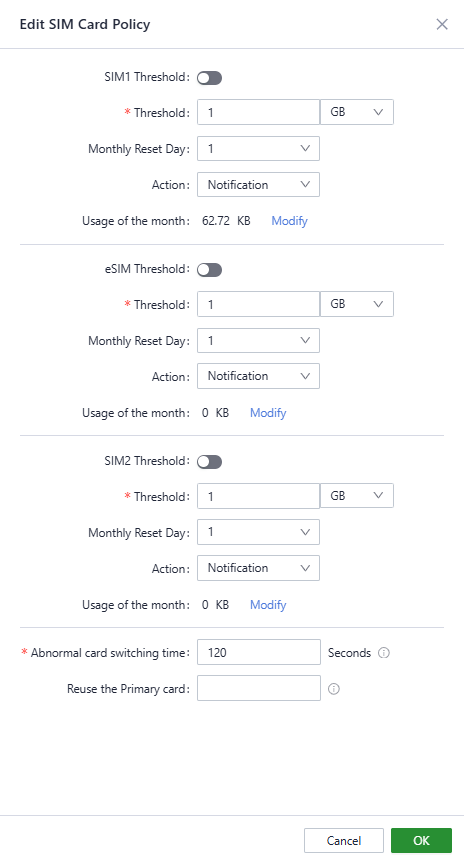
Fig. 5-3-1-f Configure the SIM card policy
5.3.2 Uplink Settings
Users can configure link detection-related settings in the "Internet > Uplink Setting" feature and configure the collaboration mode between various uplink interfaces.
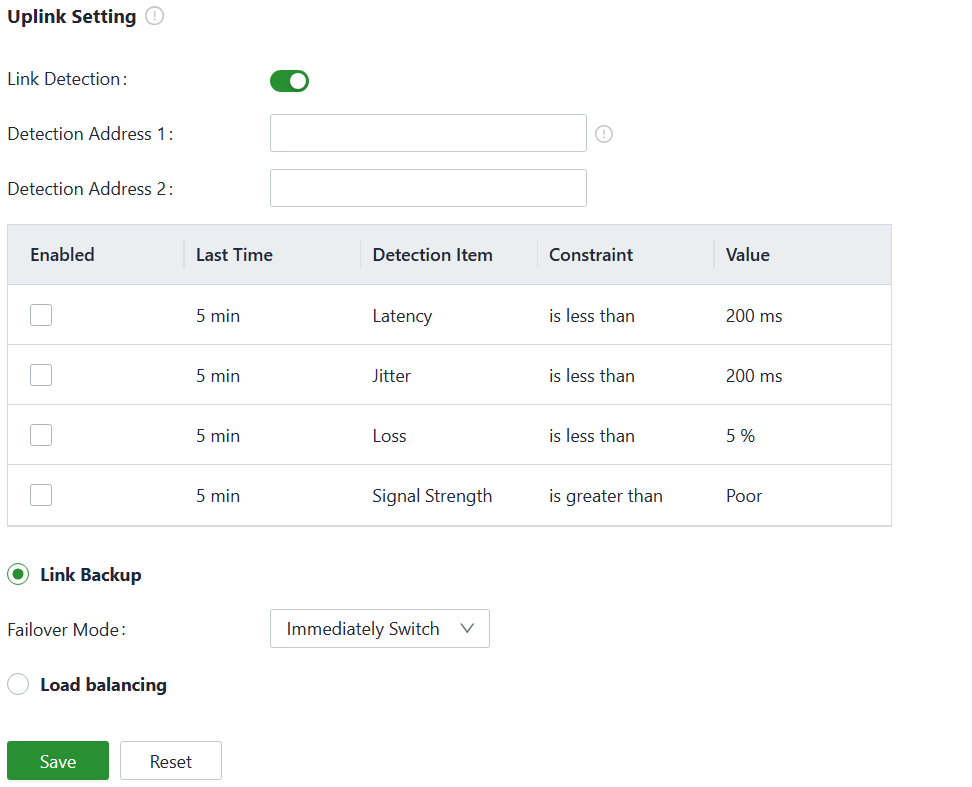
Fig. 5-3-2 Uplink settings
“Link detection” is enabled by default. In the private network environment, please manually configure the address in “Test Connectivity to” or disable the link detection function to prevent the cellular interface from malfunctioning.
Cautions:
If the detection is disabled, it will not display latency, jitter, loss, or signal strength in [ Status ].
When there are multiple upstream links available on the device, you can choose the desired working mode for multi-link operation based on your needs.
- Link Backup: The device will monitor the enabled items and trigger a link switch when any item exceeds the threshold. If there is no item enabled, the link switch will only be triggered based on priority.
- Load Balancing: The device will forward and distribute traffic to all operational upstream links.
5.4 Local Network
You can configure the LAN network of the device in the “Local Network〉Local Network List”
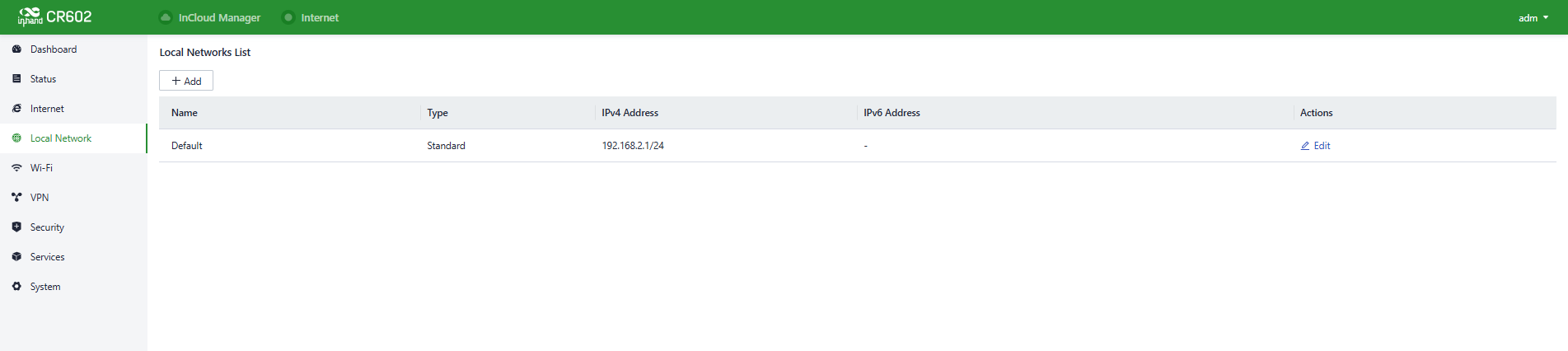
Fig. 5-4-a Local Network interface
You can set the LAN network parameters by clicking the “Edit” button.
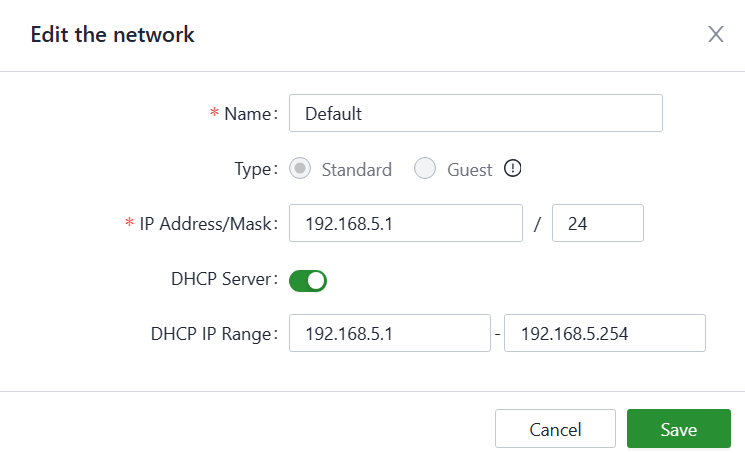
Fig. 5-4-b Configure the LAN network parameters
5.5 Wi-Fi
Wi-Fi is a widely used wireless communication technology that allows computers, smartphones, tablets, and other devices to connect to the internet or a local network. Wi-Fi technology enables devices to transmit data within a certain range using wireless signals, providing the convenience of accessing networks without the need for physical connections.
The CR602 can function as an access point (AP) and provide multiple SSIDs for wireless network access, allowing users to customize different SSIDs for various purposes and configuration.
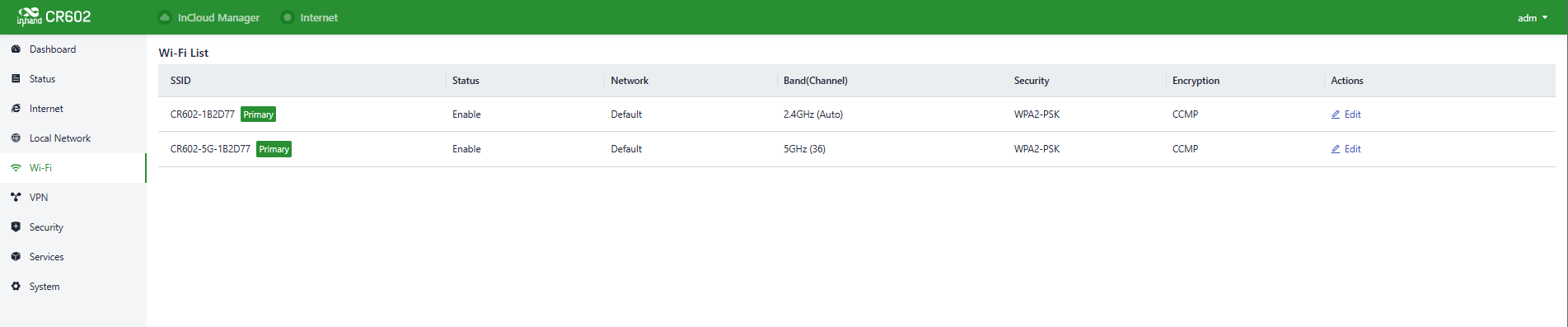
Fig. 5-5-1 Wi-Fi interface
You can configure the parameters by clicking the “Edit” button.
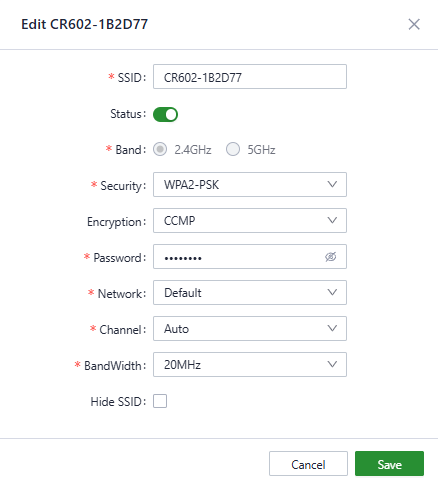
Fig. 5-5-2 Set the SSID’s parameters
Notes:
- The device comes with two default main SSIDs for 2.4GHz and 5GHz, and these main SSIDs cannot have their frequency bands modified or deleted.
- Once an SSID is added, its frequency band cannot be modified, and the channel will automatically align with the channel of the corresponding main SSID.
- If a user creates a Wi-Fi (STA) interface under the [ Internet ] menu with the same frequency band as an SSID, that SSID cannot be enabled until the Wi-Fi (STA) interface is deleted.
5.6 VPN
A VPN (Virtual Private Network) is designed to create a secure and private network within a public network, enabling encrypted communication. With a VPN router, remote access is made possible by encrypting data packets and modifying their destination addresses. VPN can be implemented using server-based, hardware-based, or software-based solutions. In comparison to traditional DDN private lines or frame relays, VPN offers a more secure and convenient remote access solution.
5.6.1 IPSec VPN
IPsec (Internet Protocol Security) VPN is a protocol suite designed to enhance network communication security. Its primary purpose is to protect the transmission of data through encryption and authentication. It is widely used for establishing secure remote access, site-to-site connections, and virtual private networks (VPNs).
You can create a new IPSec VPN item by “VPN〉IPSec VPN〉Add”, and the following parameters must be set correctly.
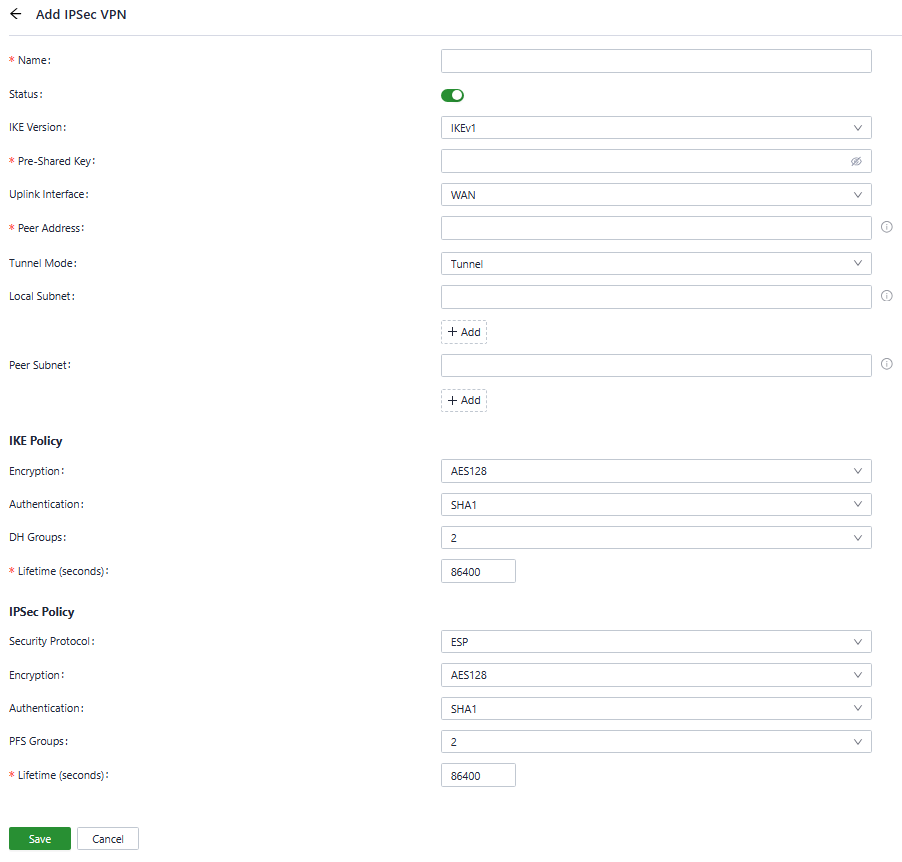
Fig. 5-6-1 Set the IPSec VPN’s parameters
- Name: Specify the name of the IPSec VPN created on the device, which is used for local VPN management.
- IKE Version: Specify the version of the IKE protocol used on this device, IKEv1 and IKEv2 are optional.
- Pre-Shared Key: Specify the authentication key for IKE negotiation, which must be consistent on both sides.
- Uplink Interface: Specify the local uplink interface used to establish the tunnel.
- Peer Address: Specify the IP address of the peer device. The peer address must be set to 0.0.0.0 if the device works as an IPSec VPN server.
- Tunnel Mode: Specify the IP packet encapsulation mode on the IPSec VPN tunnel, and the tunnel mode and transmission mode are optional.
- Local Subnet: Specify the IP address segment of the traffic to be sent out by the device through the IPSec VPN tunnel.
- Peer Subnet: Specify the IP address segment used for communication on the remote client.
- IKE Policy:
- Encryption: Specify the encryption algorithm for IKE.
- DH Groups: Specify the DH key exchange mode.
- Lifetime: Specify the lifetime of the IKE SA, and 86400 is set by default.
- IPSec Policy:
- Security Protocol: Specify the security protocol used for ERP.
- Encryption: Specify the encryption algorithm of the ESP protocol.
- Authentication: specify the authentication algorithm for ESP.
- PFS Groups: specify the Perfect Forward Secrecy (PFS) mode, which improves the communication security through an additional key exchange in Phase 2 negotiation.
- Lifetime: Specify the lifetime of the IPSec SA, and 86400 is set by default.
5.6.2 L2TP VPN
The Layer 2 Tunneling Protocol (L2TP) is a Layer 2 VPN protocol designed to provide secure point-to-point or site-to-site virtual private network (VPN) connections. It is commonly used for remote access and branch office connectivity, establishing secure communication channels for users or networks, thus ensuring the privacy and integrity of data transmission.
You can add a new L2TP VPN or configure the exited one in “VPN〉L2TP VPN ”
5.6.2.1 Server
Typically, the L2TP server is strategically deployed at the enterprise's headquarters to facilitate remote access for employees. You can configure the server in “VPN〉L2TP VPN〉Server”.
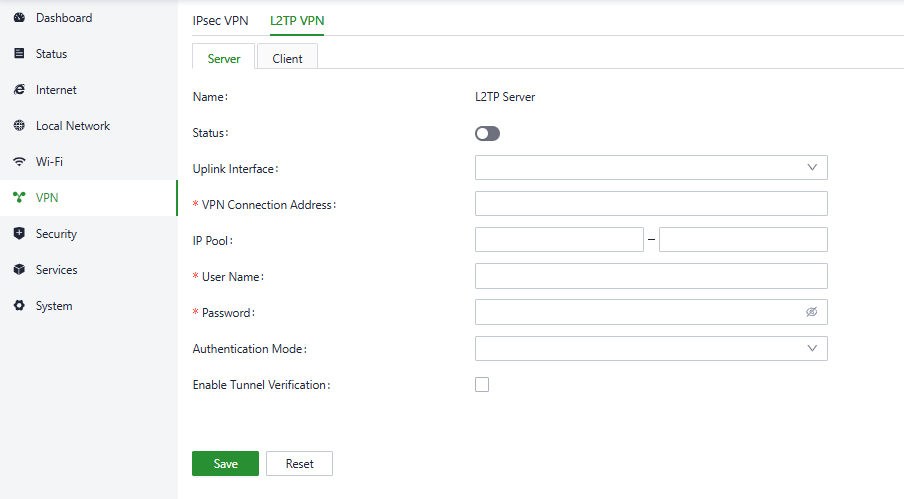
Fig. 5-6-2-1 L2TP VPN interface
Please configure the following parameters based on the actual network requirements.
- Name: The name of the L2TP server, which cannot be changed.
- Status: You can enable or disable this L2TP server by clicking the switch.
- Uplink Interface: Specify the uplink interface to establish a tunnel from the L2TP server.
- VPN Connection Address: Specify the gateway address for the L2TP VPN client.
- IP Pool: The system will assign an IP address to the L2TP client from the specified IP address pool.
- Username/Password: Specify the username and password for L2TP negotiation, which must be consistent on both ends of the tunnel.
- Authentication Mode: Specify the authentication mode for the L2TP tunnel.
- Enable Tunnel Authentication: Please make sure both ends of the tunnel are configured with the same username and password for this option.
5.6.2.2 Client
You can configure the L2TP client parameters to establish a tunnel with a remote L2TP server in “VPN〉L2TP VPN 〉Clients”.
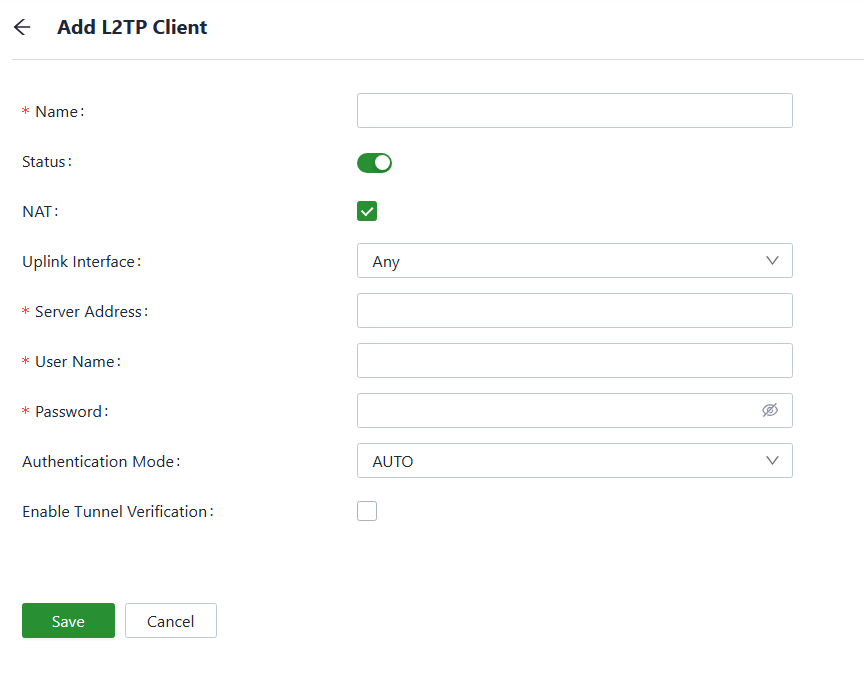
Fig. 5-6-2-2 L2TP VPN Client interface
Please configure the following parameters based on the actual network requirements.
- Name: Specify the local name of the L2TP client tunnel.
- Status: You can enable or disable this L2TP server by clicking the switch.
- NAT: You can enable or disable the NAT function by clicking the switch.
- Uplink Interface: Specify the uplink interface to establish a tunnel with a remote L2TP server.
- Server Address: Specify the IP address set by the remote L2TP server.
- Username/Password: Specify the username and password for L2TP negotiation, which must be consistent on both ends of the tunnel.
- Authentication Mode: Specify the authentication mode for the L2TP tunnel.
- Enable Tunnel Verification: Please make sure that both ends of the tunnel are configured with the same server’s name and verification key as this option is enabled.
5.7 Security
In the [ Security ] menu, users can configure advanced features related to firewalls, policy routing, and traffic shaping.
5.7.1 Firewall
The firewall currently includes functions such as inbound rules, outbound rules, port forwarding, MAC address filtering, and more.
- Inbound Rules: Traffic accessing the internal network from the outside will be restricted by configured inbound rules, which allow all through by default.
- Outbound Rules: Traffic accessing the external network from the inside will be restricted by configured inbound rules, which forbid all through by default.
Users can control traffic entering and leaving based on interfaces using the "Security > Firewall > Inbound Rules/Outbound Rules" feature. For example, if a user is experiencing a large volume of attack traffic from a specific source IP address, they can use inbound firewall rules to limit the traffic data from that IP address.
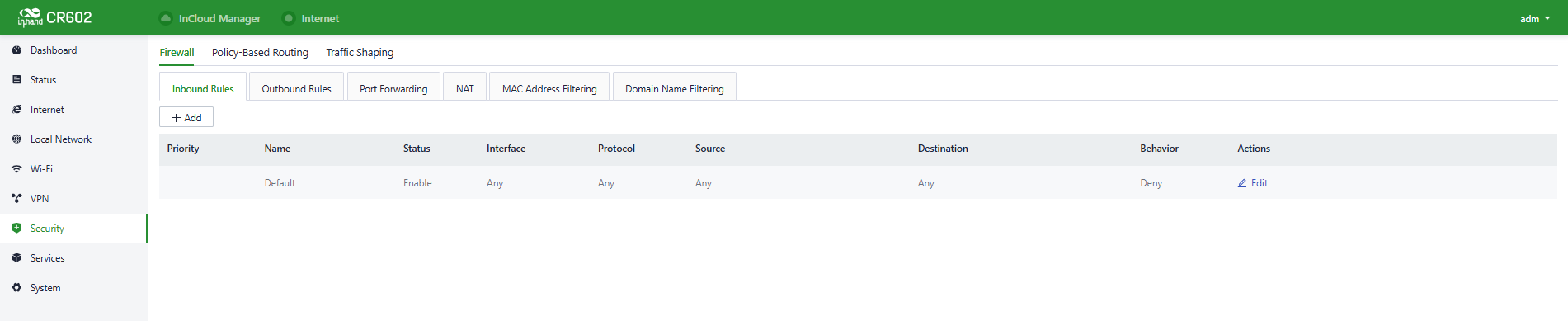
Fig. 5-7-1-a Set the Inbound/Outbound Rules
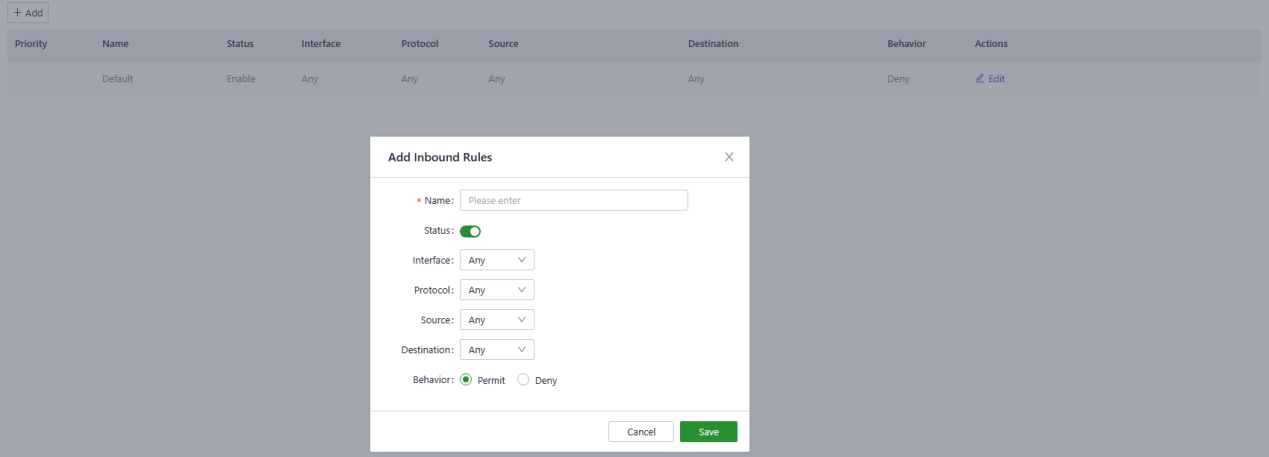
Fig. 5-7-1-b Add an Inbound Rule
The following parameters must be configured properly.
- Name: Set the local identifier of the inbound rule.
- Status: You can enable or disable this rule by clicking the switch.
- Interface: Set the forwarding interface for traffic. In the inbound direction, the outbound interface is generally the upstream interface of the device.
- Protocol: Configure the protocol type of packets to be matched, Optional Any, UDP, TCP, ICMP, Custom.
- Source: Set the source IP address of packets to be matched, supporting IP address or retain the default option Any.
- Destination: Set the destination IP address of the packets to be matched, supporting entering an IP address or retaining the default option Any.
- Behaviour: Set the behaviour if the traffic matches the configured rules.
- Port Forwarding: Port forwarding, also known as port mapping and port redirection, is the practice of redirecting network packets from one network port (or address) to another network port (or address). Users can configure port forwarding rules in "Security > Firewall > Port Forwarding." When external traffic accesses a specific port on the router, the device forwards the data to the corresponding port on the internal client, enabling external access to servers within the router's network.
For example, after setting port forwarding rules like below, when users from the public network try to access to device’s port 2000 on WAN, the system will transfer the request to 192.168.1.23:8080 in LAN.

Fig. 5-7-1-c Set the Port Forwarding Rules
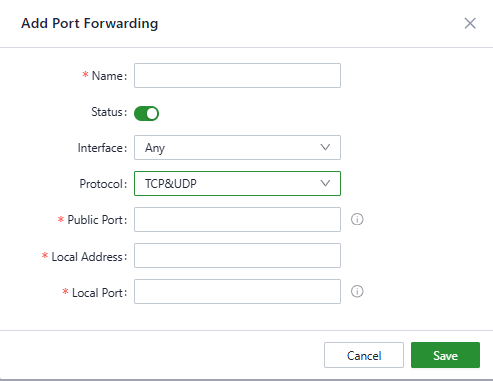
Fig. 5-7-1-d Add a Port Forwarding Rule
The following parameters must be set properly.
- Name: Set the local identifier of the port forwarding rule.
- Status: You can enable or disable this rule by clicking the switch.
- Interface: Set the uplink interface that provides port mapping for internal clients. This interface must be configured with a public IP address.
- Protocol: Set the protocol of the port on which port mapping takes effect. It supports TCP, UDP, and TCP&UDP.
- Public Port: Set the protocol port on the uplink interface to be mapped.
- Local Address: Set the IP address of the target client that external users need to access.
- Local Port: Set the protocol port that external users need to access on the target client.
- NAT: Network Address Translation (NAT) allows multiple devices on a private network to share a single public IP address. It translates private IP addresses to a public IP for outgoing traffic and maps incoming responses back to the corresponding internal device, enabling secure and efficient Internet connectivity. Users can configure NAT rules in "Security > Firewall > NAT."
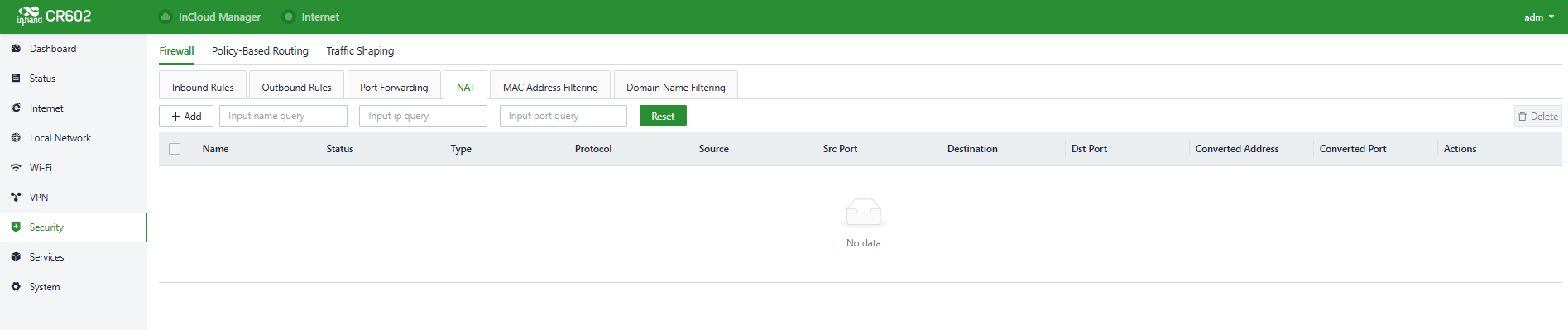
Fig. 5-7-1-e Set the NAT Rule
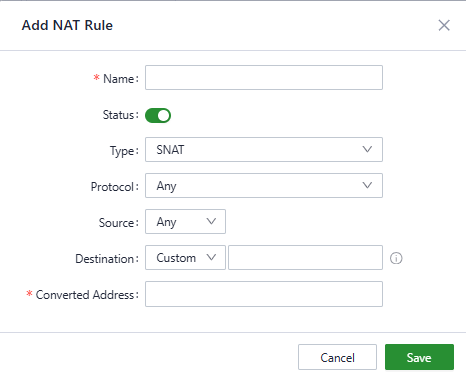
Fig. 5-7-1-f Add a NAT Rule
- MAC Address Filter: MAC address filtering refers to the practice of blocking or allowing devices to access the internet based on a list of MAC addresses. This means that you can control internet access requests from devices within your local network using the MAC address filtering feature on your router. Users can configure MAC address filtering rules in "Security > Firewall > MAC Address Filtering."
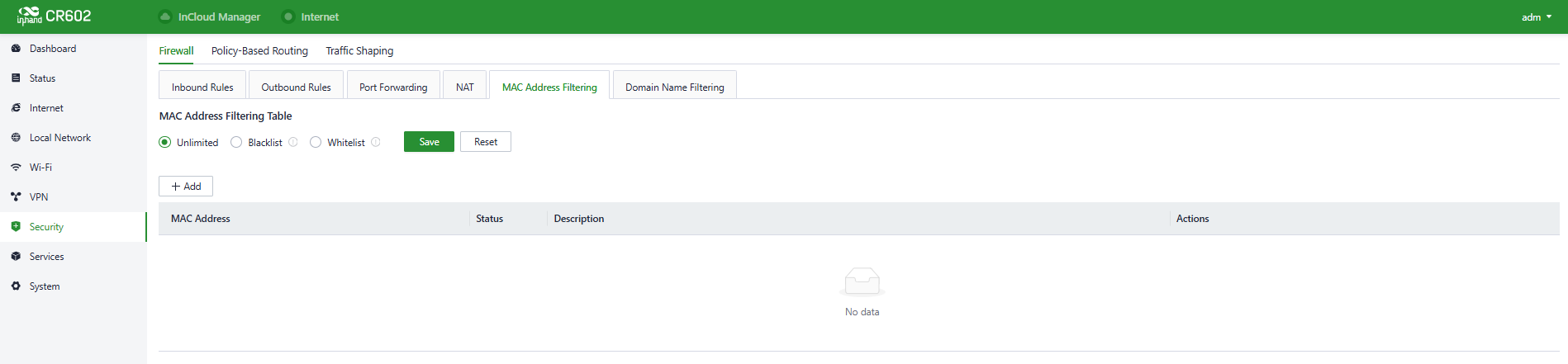
Fig. 5-7-1-g Set the MAC Address Filter Rule

Fig. 5-7-1-h Add a MAC Address Filter Rule
- Blacklist: Devices in the blacklist will not be able to access the Internet.
- Whitelist: Only devices in the whitelist are allowed to access the Internet.
- Domain Name Filter: Domain Name Filter refers to the practice of blocking or allowing devices to access the domain based on a list of domain name. This means that you can control internet access requests from devices within your local network using the domain name filtering feature on your router. Users can configure domain name filtering rules in "Security > Firewall > Domain Name Filtering."
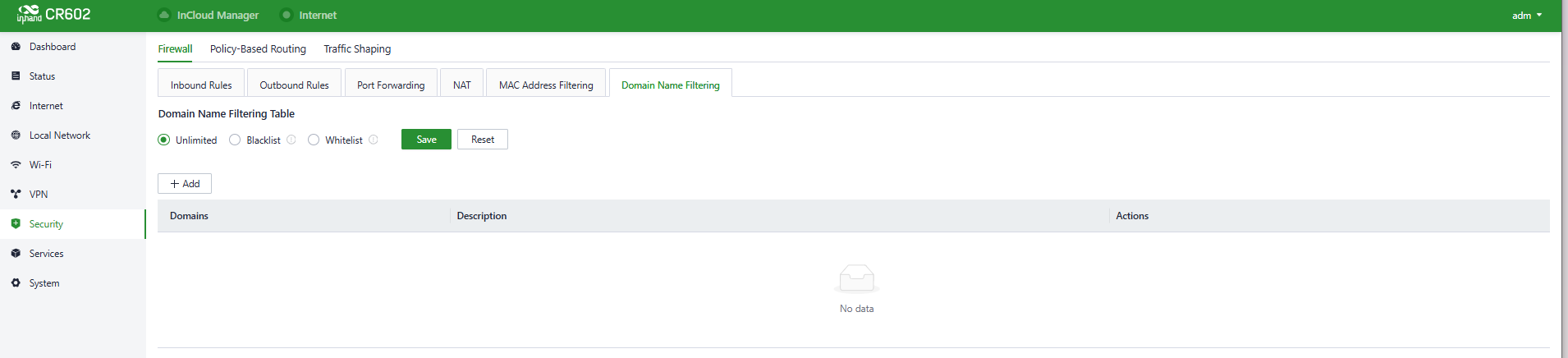
Fig. 5-7-1-i Set the Domain Name Filter Rule
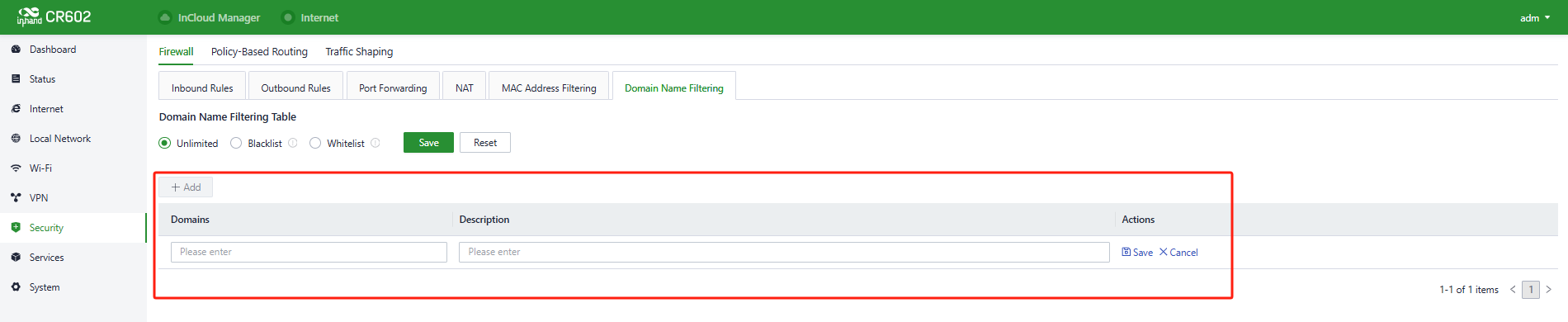
Fig. 5-7-1-j Add a Domain Name Filter Rule
5.7.2 Policy-Based Routing
Policy-based routing (PBR) allows the device to forward different data flows through different links based on configured policies. This feature enables flexible route selection and control, thus improving link utilization and reducing the operational cost of the enterprise.
You can set the rules in “Security〉Policy-Based Routing〉Add/Edit”.
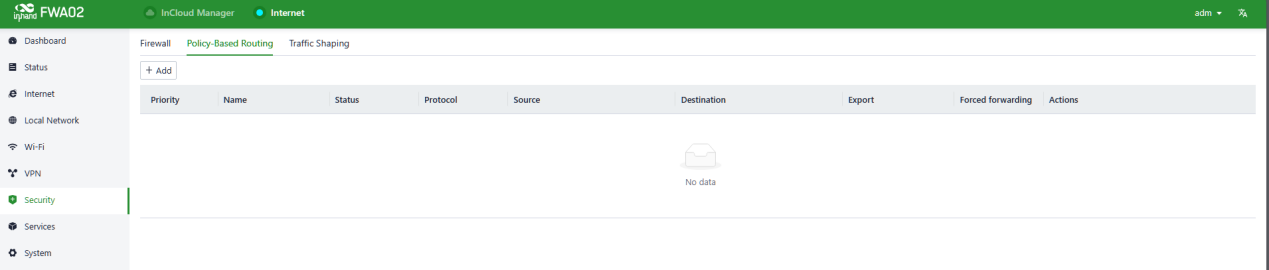
Fig. 5-7-2-a Policy-Based Routing interface
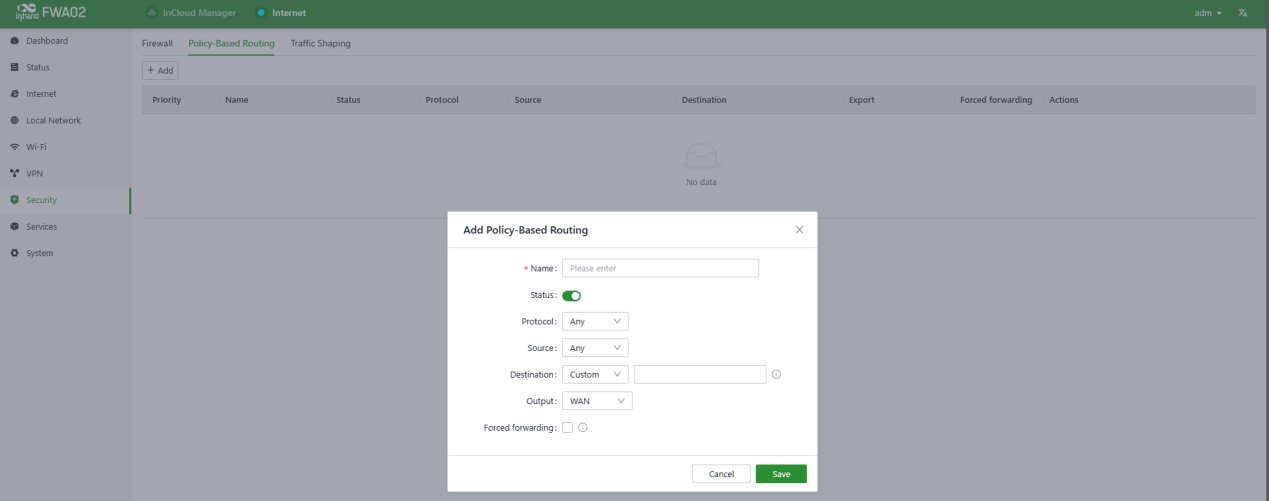
Fig. 5-7-2-b Add a Policy-Based Routing
The following parameters must be set properly.
- Name: Set the local identifier of the rule.
- Status: You can enable or disable this rule by clicking the switch.
- Protocol: Set the protocol of the port. It supports TCP, UDP, and TCP&UDP.
- Source: Set the source IP address of packets to be matched, supporting IP address or retain the default option Any.
- Destination: Set the destination IP address of the packets to be matched, supporting entering an IP address or retaining the default option Any.
- Output: Set the traffic egress interface, optional WAN port and cellular.
5.7.3 Traffic Shaping
Create shaping policies to apply per-user controls on a per-protocol basis to optimize the network. This function can also reduce bandwidth for recreational traffic and prioritize bandwidth for critical business traffic.
You can configure the Traffic Shaping rules in “Security〉Traffic Shaping〉Add/Edit”.
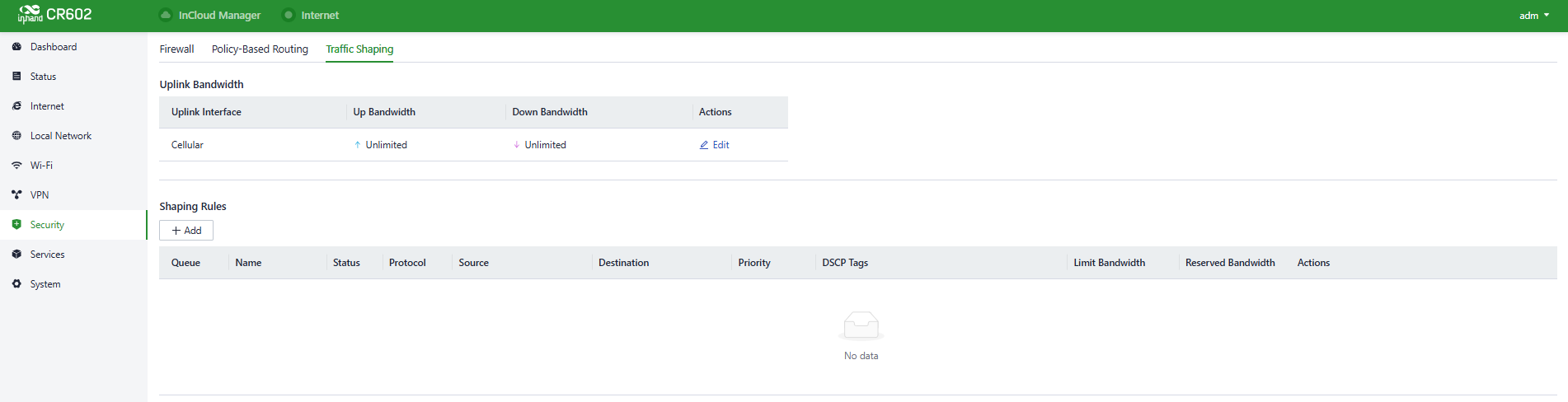
Fig. 5-7-3-a Traffic Shaping interface
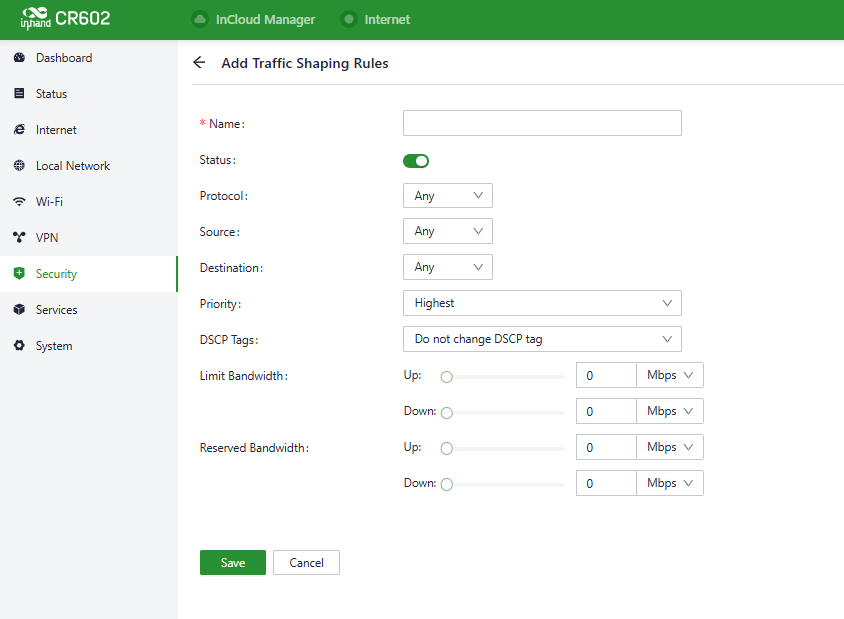
Fig. 5-7-3-b Add a traffic-shaping rule
Traffic shaping policies consist of a series of rules that are performed in order, which is similar to custom firewall rules. There are two main components to each rule: the type of traffic to be limited or shaped, and how that traffic should be limited or shaped.
Notes:
- Traffic forwarding priority for unmatched rules is medium.
- When Limit Bandwidth is set to 0, the system will not limit the bandwidth.
- The value of Reserved Bandwidth should not be greater than the Limit Bandwidth.
5.8 Service
5.8.1 Interface Management
Users can configure the allowed local networks through a specified interface and set the interface's speed in the "Services > Interface Management" function.
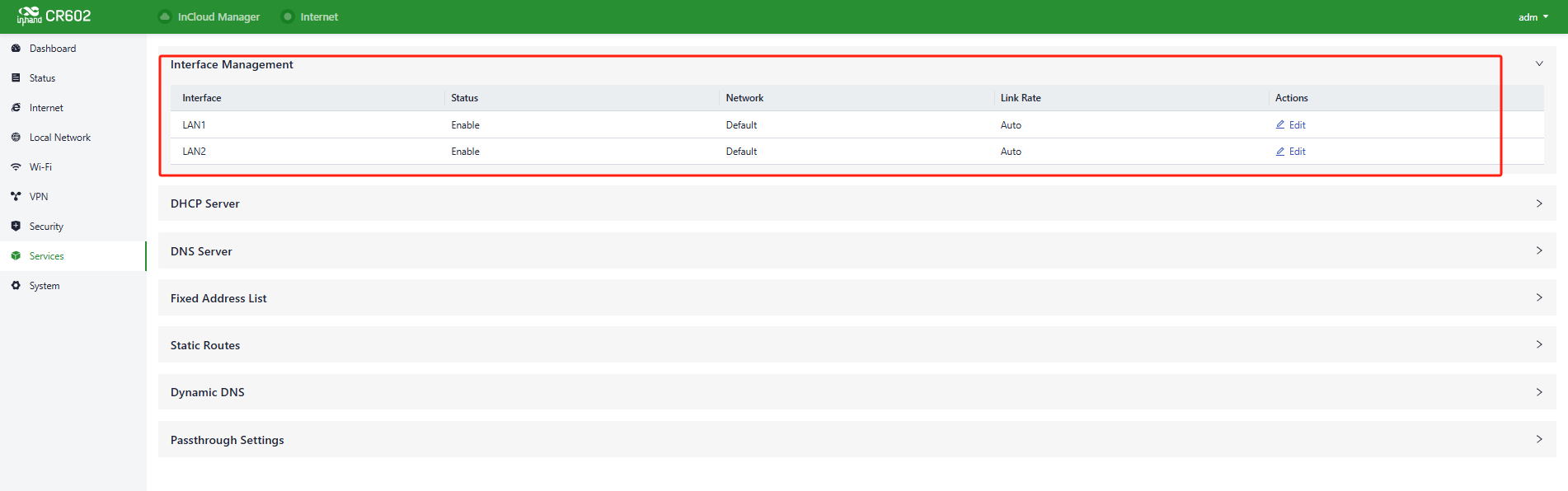
Fig. 5-8-1-a Interface panel
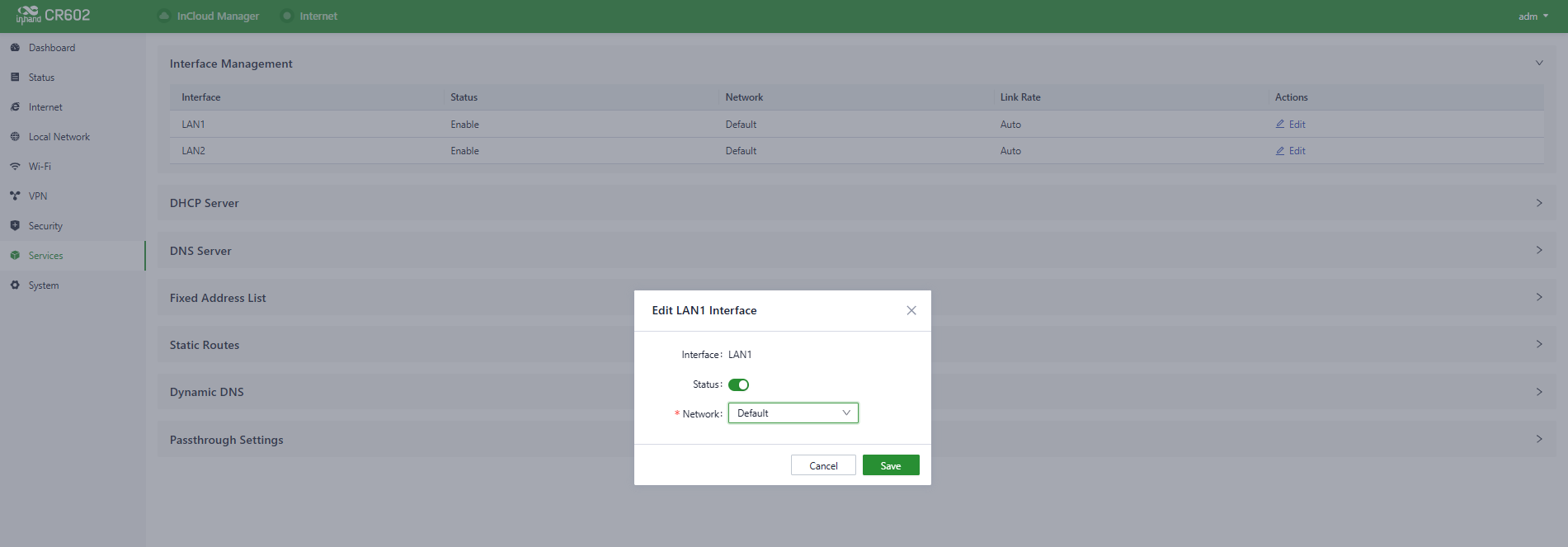
Fig. 5-8-1-b Edit the interface
5.8.2 DHCP Server
The DHCP (Dynamic Host Configuration Protocol) service operates in a client/server communication mode, where clients request IP addresses from servers, and servers respond to these requests by assigning IP addresses dynamically to clients.
Users can configure the DHCP server’s IP address pool using the "Services > DHCP Server" feature.
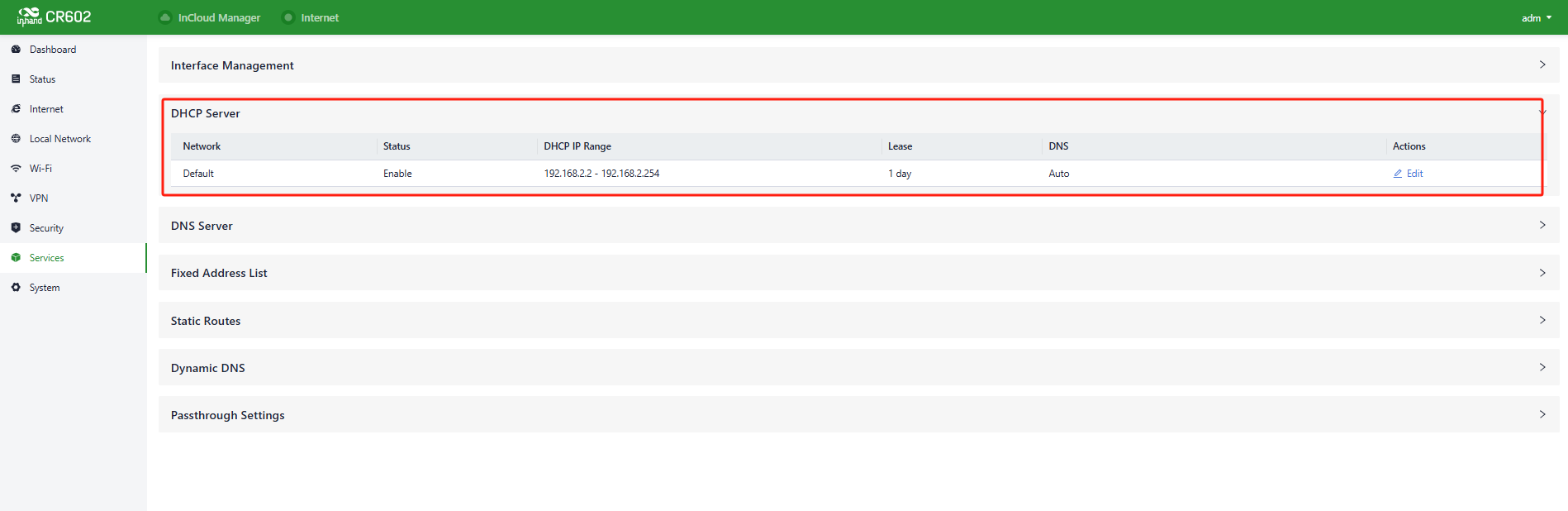
Fig. 5-8-2-a DHCP Server Panel
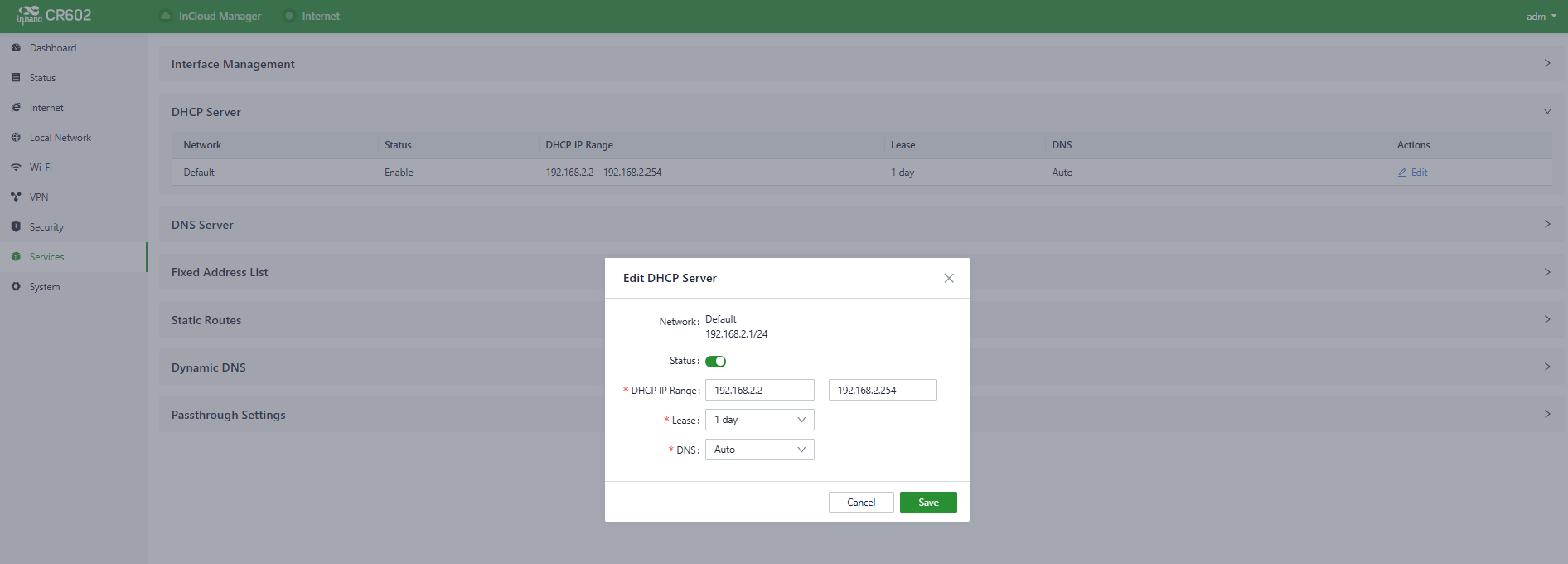
Fig. 5-8-2-b Edit the DHCP Server
5.8.3 DNS Server
DNS (Domain Name System) servers are a critical component of the network. They are responsible for translating human-readable domain names (e.g., www.example.com) into IP addresses that computers can understand (e.g., 192.168.1.1). DNS servers act as the internet's address book, helping computers and devices locate the whereabouts of other devices and ensuring that information can be correctly transmitted on the network.
When no DNS server address is set in "Services > DNS Server," the device will use the DNS addresses obtained from the upstream interface for address resolution. Once DNS server addresses are configured, the specified DNS addresses will be used for address resolution.
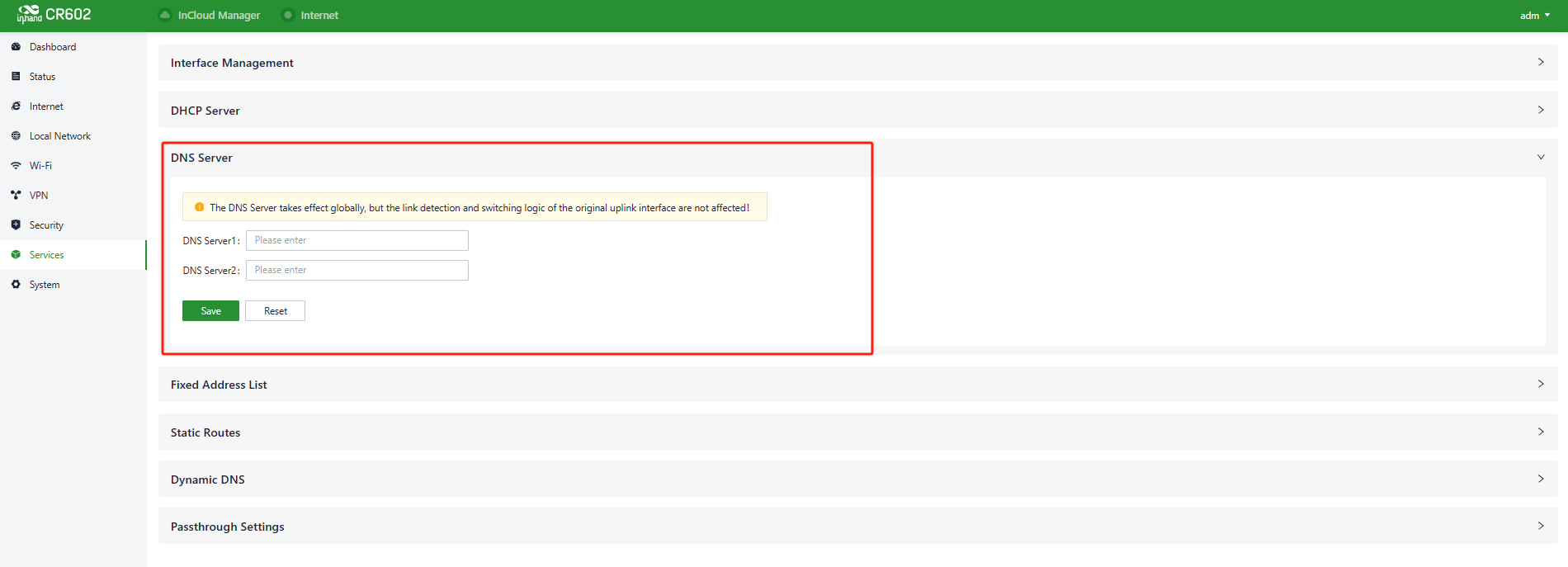
Fig. 5-8-3 DNS Server Panel
5.8.4 Fixed Address List
Users can allocate a fixed IP address to a device based on its MAC address using the "Services > Fixed Address List" feature. This ensures that the device receives the same IP address every time it connects to the CR602.
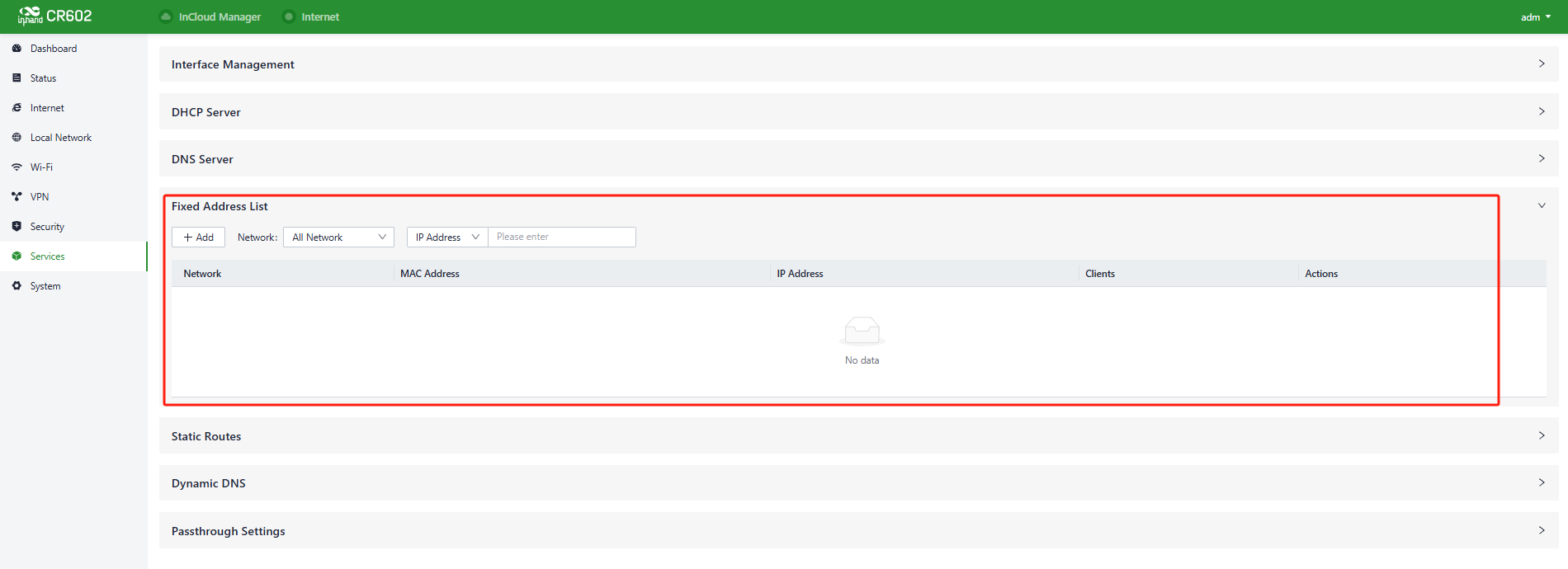
Fig. 5-8-4 Fixed Address Panel
Cautions:
- The addresses available for allocation must fall within the address range of the IP-mode local network, or else the configuration will not take effect.
- When a local network is deleted, all fixed address allocation rules within the address range of that local network will also be deleted.
5.8.5 Static Routes
Users can configure static routing entries using the "Services > Static Routes" feature to manually define routes for data to be forwarded through specific paths and interfaces. The contents of the static routing table are created manually by users, and routes generated by other services, such as VPN functionality, will not appear in this table.
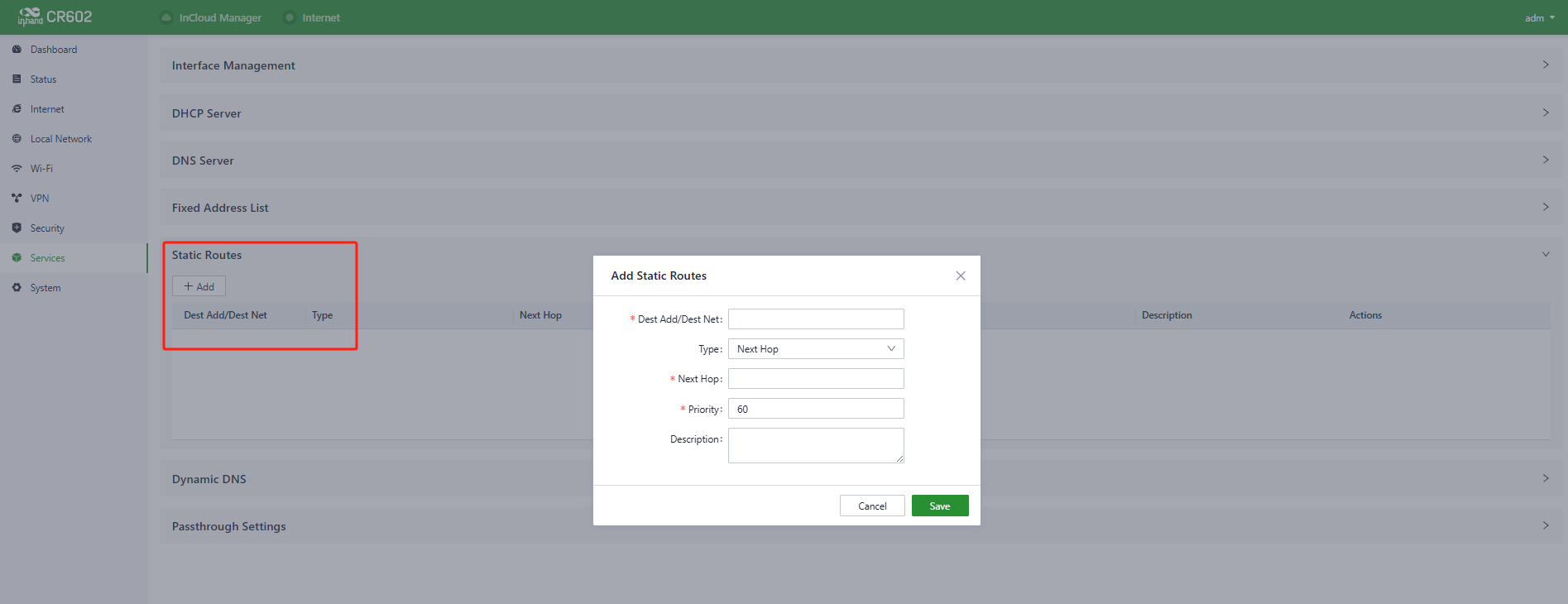
Fig. 5-8-5 Static Routes interface
Cautions:
- Static routes with the same destination address/network cannot have the same next-hop address, interface, or priority. Otherwise, it may lead to routing failures.
- When WAN2, Wi-Fi (STA), or L2TP Client VPN is deleted, the corresponding static routes using those interfaces will also be removed.
5.8.6 Dynamic DNS
Dynamic DNS (Dynamic Domain Name System) is used to automatically update the content of name servers in the Domain Name System. According to the rules of the Internet, domain names are usually associated with fixed IP addresses. Dynamic DNS technology provides fixed name servers for users with dynamic IP addresses, allowing external users to connect to users with dynamic IP addresses through regular updates of their URLs.
Users can manually configure the Dynamic DNS server address under the "Services > Dynamic DNS" feature.
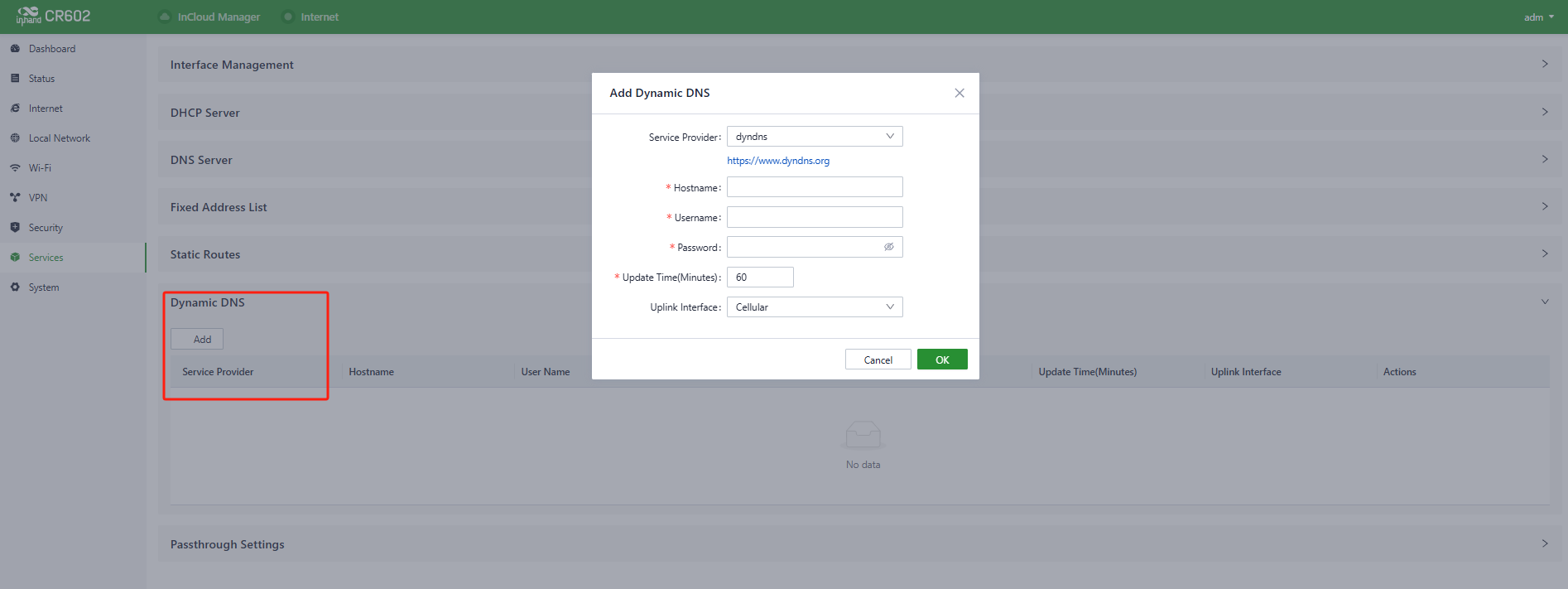
Fig. 5-8-6 Set the Dynamic DNS Address
- Service Provider: Provided by the dynamic DNS service provider, you can choose from dyndns, 3322, oray, no-IP, or customize (requires a URL).
- Hostname: Click on the URL below the service provider to register and obtain the hostname.
- Username: Click on the URL below the service provider to register and obtain the username.
- Password: The password set by the user during registration.
5.8.7 Passthrough Settings
Users can enable the IP Passthrough feature in "Services > Passthrough Settings". Once enabled, client devices can obtain the upstream interface address of the CR602.
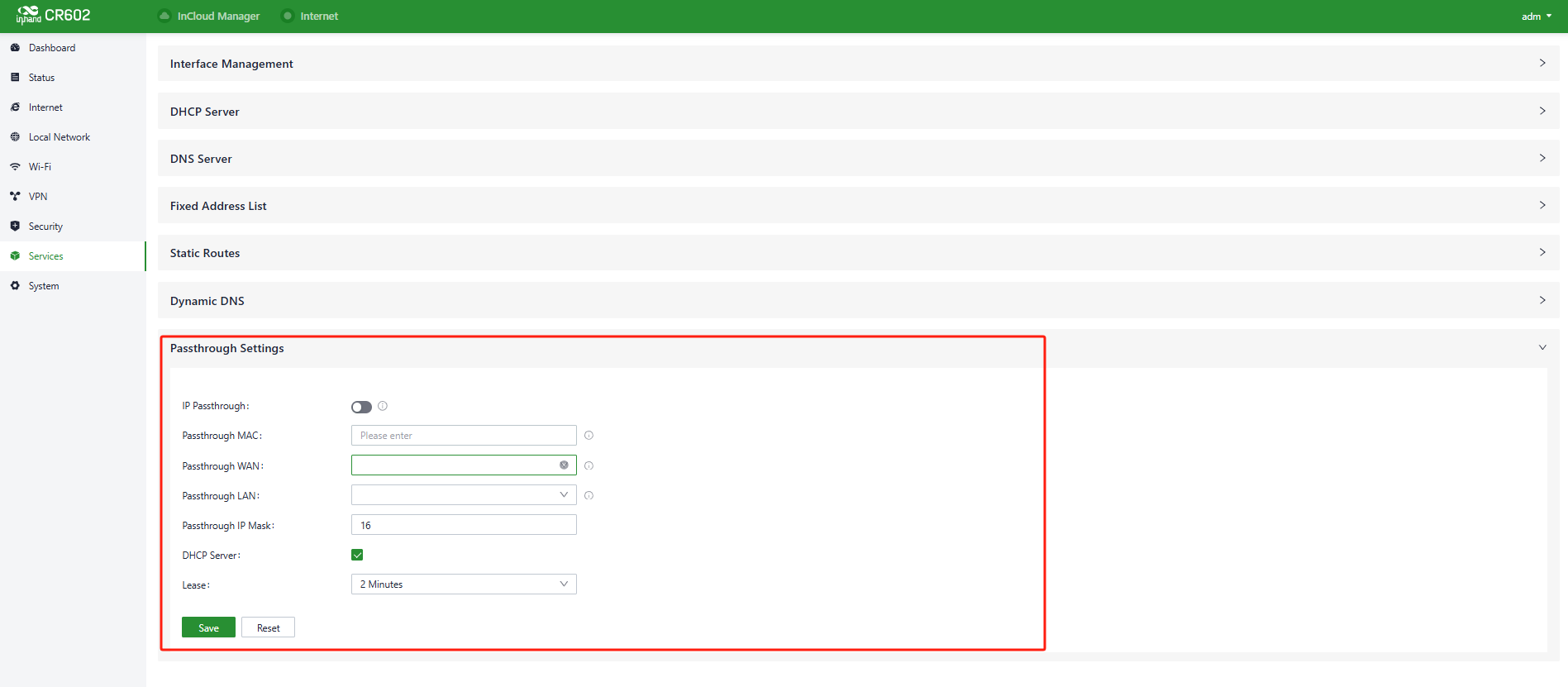
Fig. 5-8-7 Set the IP Passthrough mode
- Passthrough MAC: Only clients bound to this MAC can obtain the upstream interface address of the device.
Cautions:
- Once the IP Passthrough mode is enabled, only one client can access the public network, and the following features are disabled: static routing, VPN, port forwarding, policy-based routing, SD-WAN Overlay, and cloud connectivity.
- When accessing client devices, you need to release inbound rules.
- You can still access the router via the default subnet's IP address.
5.9 System
5.9.1 Cloud Management
The InCloud Service (star.inhandcloud.com) is a cloud platform developed by InHand Networks to address the challenges faced by enterprise networks, such as slow deployment, complex operations, and poor user experiences. This platform is designed with a focus on user needs and integrates features like zero-touch deployment, intelligent operations and maintenance, security protection, and excellent user experience capabilities. Once devices are connected to the cloud platform, users can perform remote management, batch configuration, traffic monitoring, and other operations through the platform, making network device management more convenient and efficient.
CR602 automatically connects to the InCloud Service after establishing an internet connection by default. If you do not wish to use the cloud management function, you can disable it manually in the "System > Cloud Management" function.

Fig. 5-9-1 Configure the Cloud Management service
5.9.2 Remote Access Control
Users can control whether external access to the router's web configuration interface from the Internet is allowed by configuring the "System > Remote Access Control" function. This feature also allows users to set the service port for remote access.

Fig. 5-9-2 Configure the Remote Access Control
- HTTPS: When enabled, users can access the router's web interface remotely by entering the public IP address and port of the upstream interface in a web browser.
- SSH: When enabled, users can remotely log in to the router's backend by using remote tools like CRT, entering the public IP address and port of the device's upstream interface, along with a username and password.
- Ping: When enabled, the upstream interface address allows external networks to initiate Ping requests.
5.9.3 Country & System Clock
In network functionality, the clock function refers to the capability used to coordinate and synchronize the time between network devices. Clock functionality within a network is crucial for data transmission, log recording, security, coordination, and troubleshooting. It ensures that various devices in the network are operating with synchronized times, which is essential for efficient and secure network operations.
Users can use the "System > Clock" function to select their current time zone and configure NTP (Network Time Protocol) server addresses to synchronize the device's system time with an NTP server.
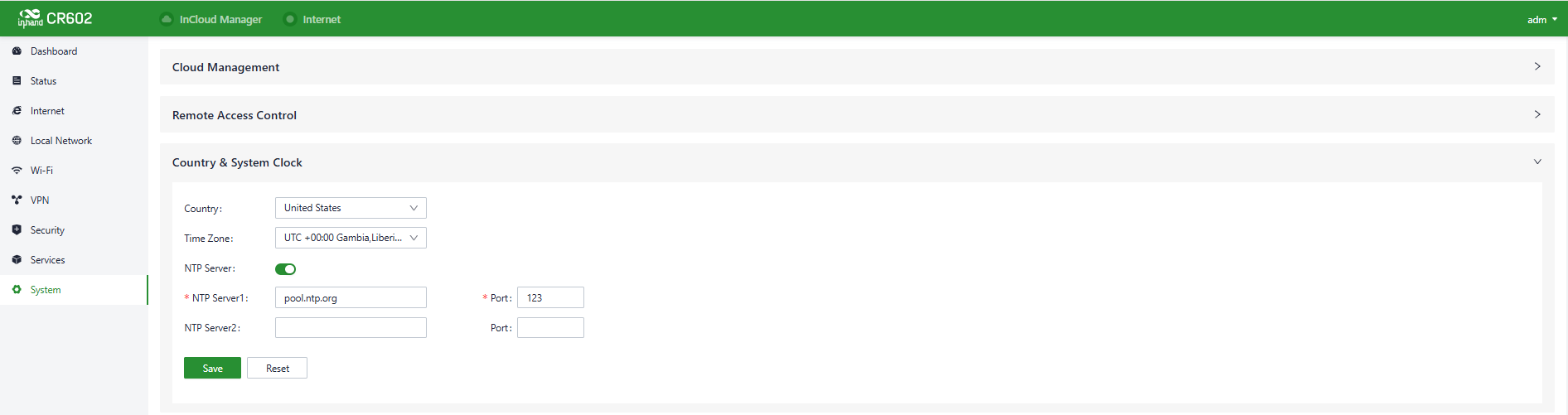
Fig. 5-9-3 Set the System Clock and NTP Server
5.9.4 Device Options
In the "System > Device Options" section, users can perform various device operations such as rebooting, upgrading firmware, and restoring factory settings.
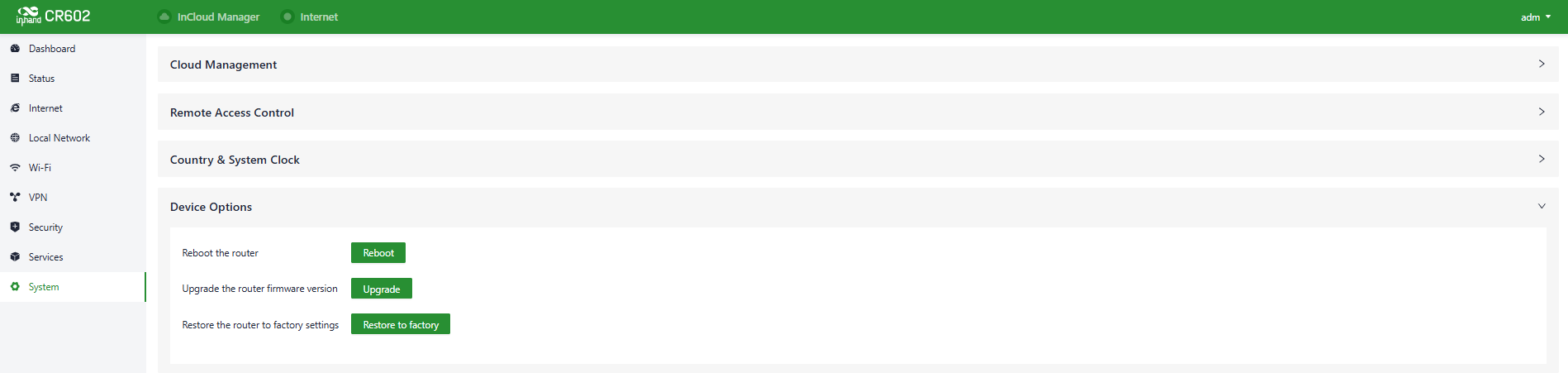
Fig. 6-9-4 Device Option Panel
Cautions:
- When locally upgrading firmware, please ensure that you obtain the firmware from a legitimate source to avoid rendering the device unusable due to incorrect firmware installation.
- When a device is connected to the cloud platform, the platform will synchronize the previous configuration to the device again due to cloud-based configuration synchronization. The device will only clear historical data during the factory reset.
5.9.5 Configuration Management
Configuring backups and backup recovery are critical tasks in network management and maintenance. They involve the process of preserving configuration information for network devices so that they can be quickly restored or migrated when needed. This practice ensures the resilience and reliability of network operations and simplifies the recovery process in case of system failures or configuration changes.
Users can export the device configuration to local storage in "System > Configuration Management." This backup can be useful in cases where device configuration is lost or needs to be restored.
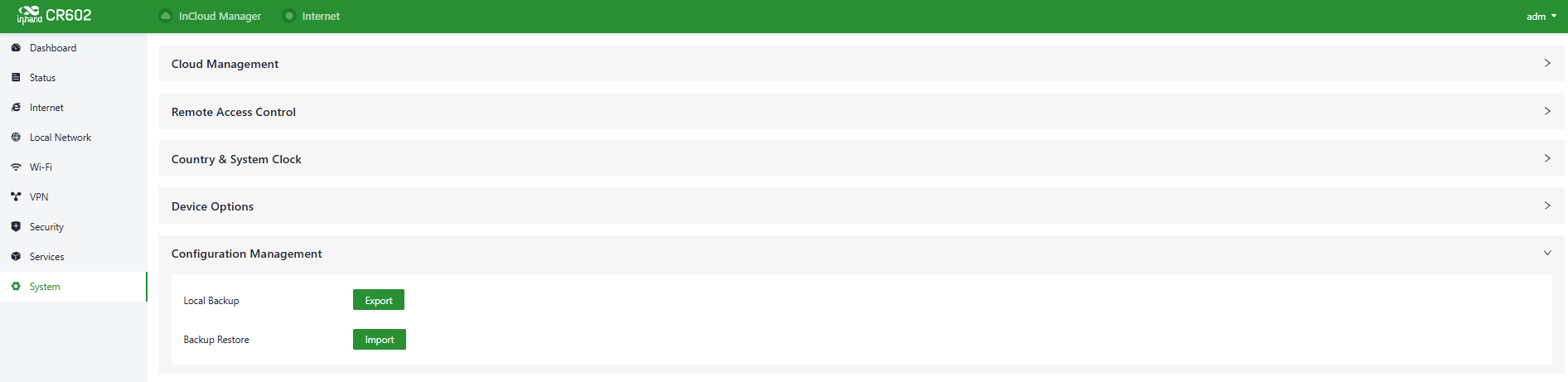
Fig. 5-9-5 Configuration Management Panel
5.9.6 Device Alarms
When users want to pay special attention to certain events that may occur on the device, they can check the corresponding alarm events and set the email address to receive alarm notifications in "System > Device Alarm." Once an alarm event occurs, the device will automatically send the corresponding email notification. It's important to note that for alarm options that users haven't checked, related alarm events will still be recorded in the device's local logs.
In the "System > Device Alarm" function, you can set the alarm event types and the email address to receive alarm notifications. This allows you to specify which types of alarm events you want to be notified about via email and where those email notifications should be sent.
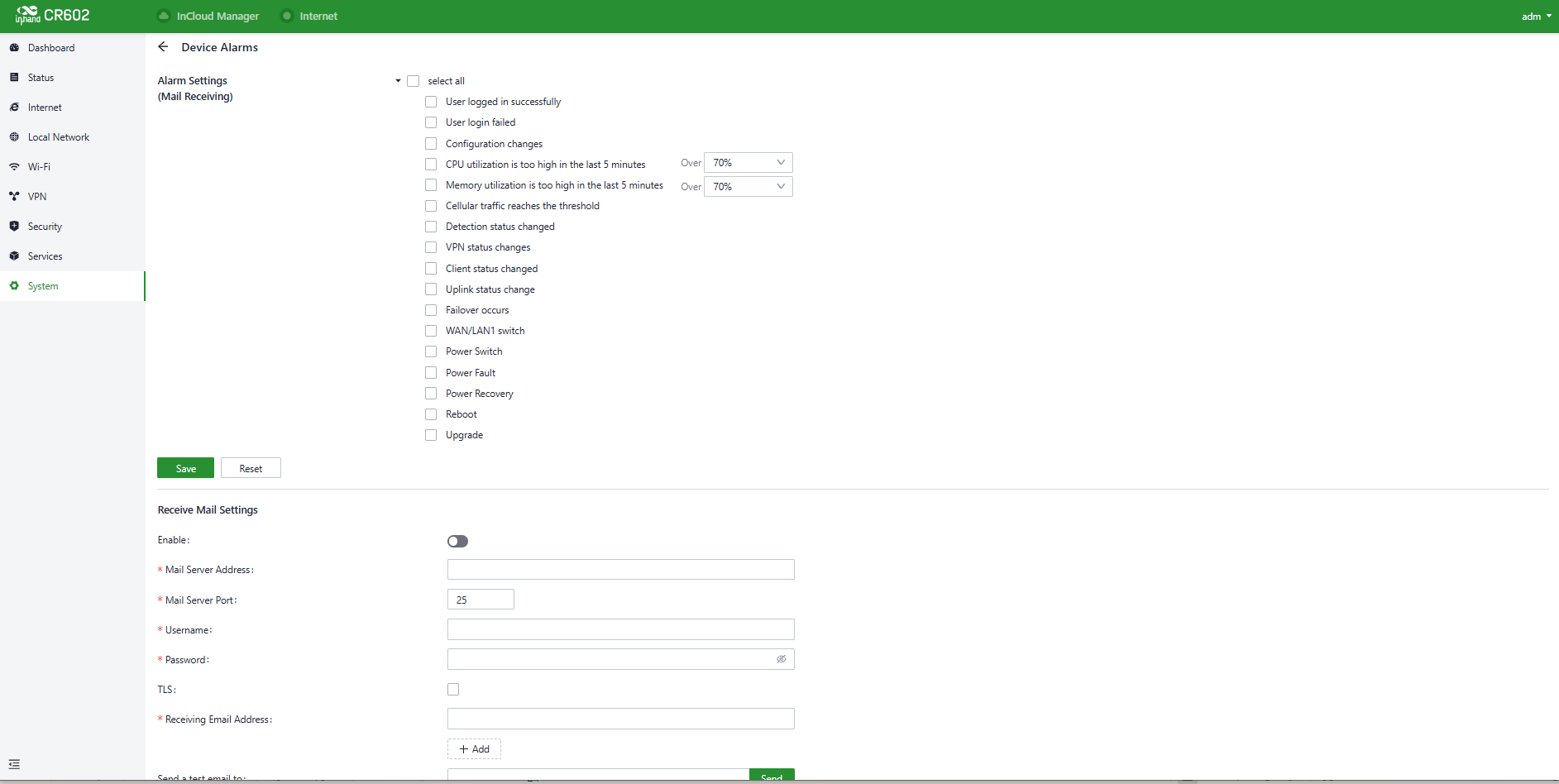
Fig. 5-9-6 Configure the Device Alarms
After configuring the outgoing email server address, port, username, and password, the device will use this email account to send alarm notifications. You can use the "Send Test Email" option to verify whether the outgoing email configuration is correct. This test email will help you ensure that the device can successfully send alarm notifications to the specified email address.
5.9.7 Tools
5.9.7.1 Ping
Users can use ICMP (Internet Control Message Protocol) to check the device's external network connectivity. In the "Target" field, enter any domain name or IP address you want to test the device's connectivity to, and then click "Start" to check the connectivity status between the device and the specified target. This can help you determine whether the device can reach the target over the internet.
Users can perform a network ping test on a target by going to "System > Tools > Ping." This allows them to send ICMP echo requests to the specified target IP address or domain name and receive ICMP echo replies to check network connectivity and latency to that target.
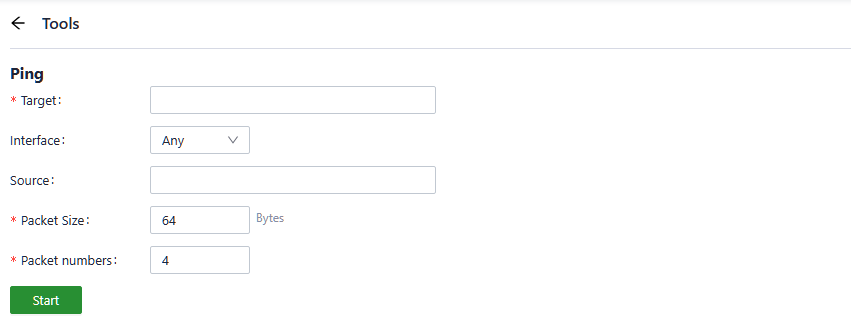
Fig. 5-9-7-1 Ping
5.9.7.2 Traceroute
Users can use the "System > Tools > Traceroute" function to check the routing connectivity from the device to a target host. They can input the target host's IP address or domain name, select the outbound interface for traffic, and click "Start" to trace the route from the device to the target IP, displaying each hop along the way. This can help diagnose network routing issues and identify the path taken by data packets to reach the destination.
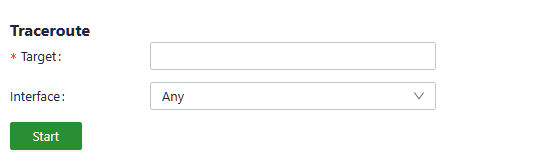
Fig. 5-9-7-2 Traceroute
5.9.7.3 Capture
Users can use the "System > Tools > Capture" function to capture packets passing through a specific interface. By selecting the "Output" option, users can choose to either display the captured data in the interface or export it locally for further analysis. This feature is useful for network troubleshooting and analyzing network traffic.

Fig. 5-9-7-3 Capture
5.9.7.4 Iperf
Users can use the "System > Tools > Iperf" function to to test the transmission performance.
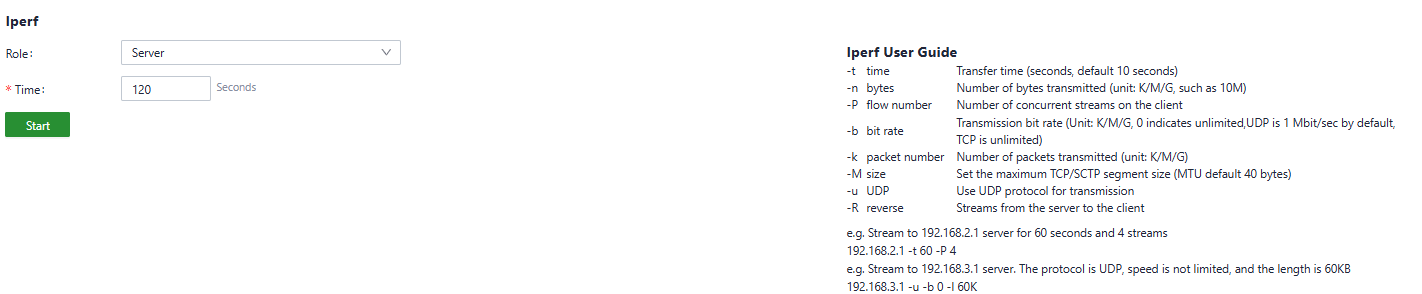
Fig. 5-9-7-3 Iperf
5.9.8 Scheduled Reboot
Scheduled reboot is a strategy in network device management that allows administrators to automatically restart devices at specific times or under certain conditions to ensure their normal operation and performance.
In practical use, users can set up device scheduled restart times in the "System > Scheduled Reboot" function based on their business needs. The device supports scheduled reboots at fixed times on a daily, weekly, or monthly basis.
For monthly reboots, when the selected reboot day is greater than the actual number of days in that month, the device will reboot on the last day of that month. For example, if you choose to reboot on the 31st of the month in a month with only 30 days, the device will reboot on the 30th.
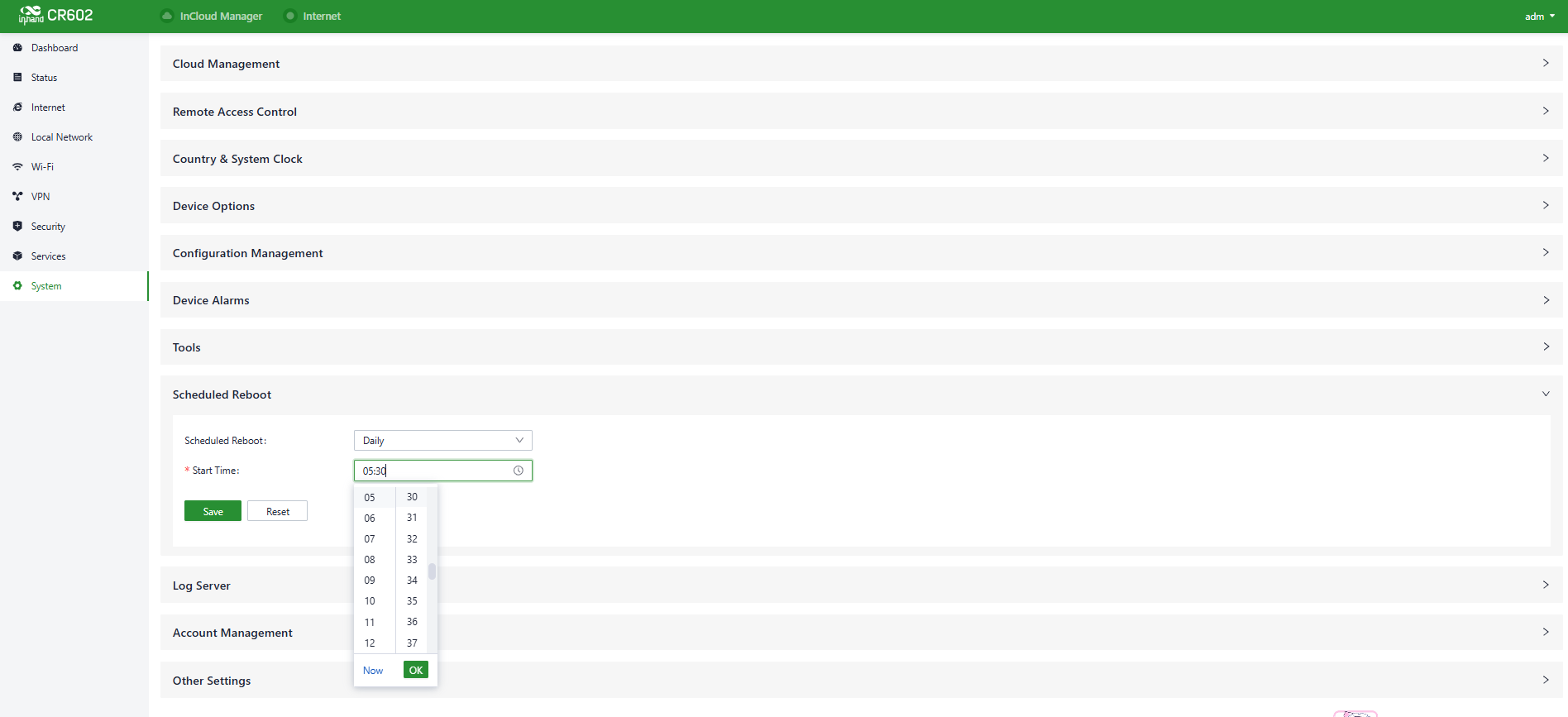
Fig. 5-9-8 Set the scheduled reboot time
5.9.9 Log Server
You can set a remote log server to receive the logs sent by this device through “System〉Log Server”.
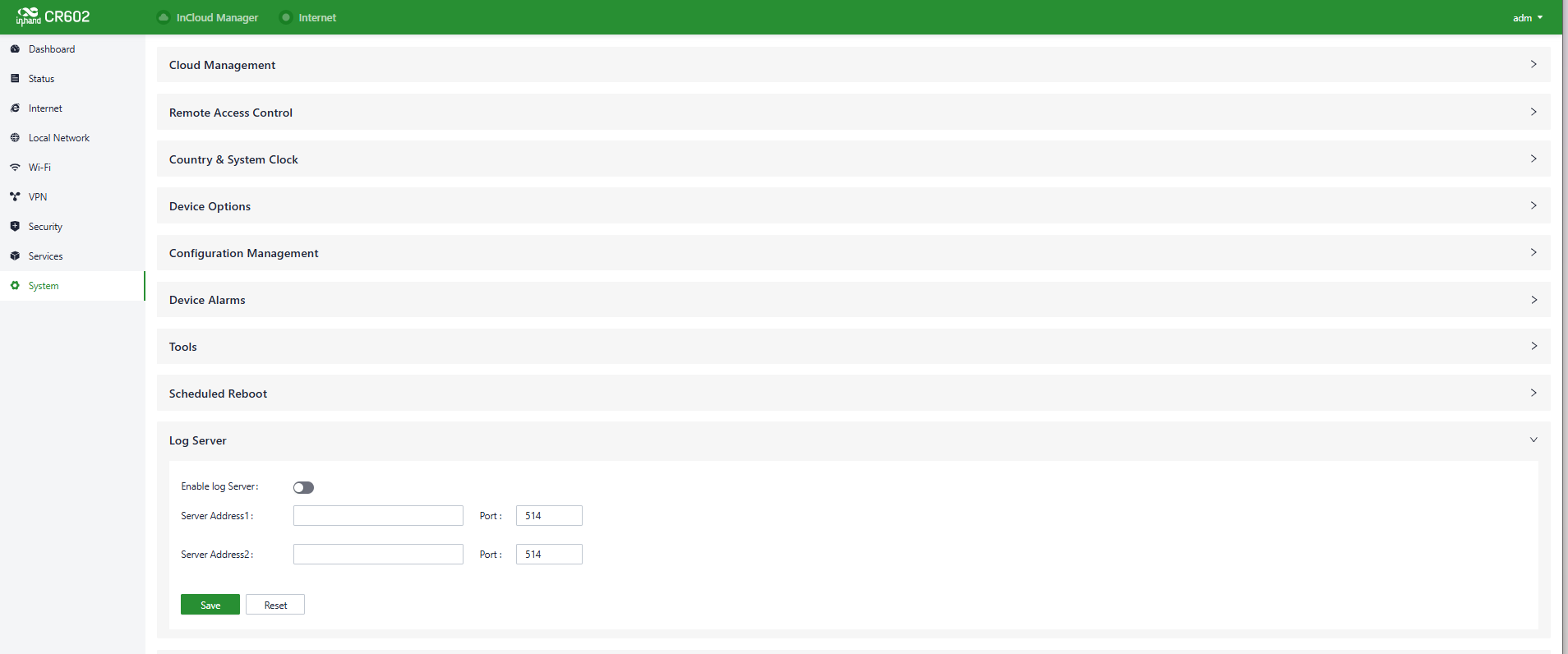
Fig. 5-9-9 Set the Log Server’s address
5.9.10 Account Management
You can set the account by this device through “System〉Account Management”.

Fig. 5-9-9 Set the account
5.9.11 Other Settings
5.9.11.1 Web Login Management
After a certain period of inactivity, when a user logs into the local interface of a device through a web interface, the system will automatically log them out or disconnect to ensure user privacy and security.
Users can set the logout time in "System > Other Settings > Web Login Management." Once the online time for a single login session on the device's web page exceeds the configured time, the system will automatically log out the user, and they will need to log in again to continue their operations.

Fig. 5-9-11-1 Set the web page logout time
5.9.11.2 Accelerated Forwarding
This feature can be used to accelerate packet forwarding and enhance network performance. It is turned off by default.
After enabling this feature in "System > Other Settings > Accelerated Forwarding," the device's cellular speed will significantly improve.

Fig. 5-9-11-2 Enable the accelerated forwarding
Cautions:
- Enabling this feature will disable the normal functioning of IPSec VPN, traffic shaping, and other related features.
5.9.11.3 Automatically Restarts
Edge routers are specifically designed with an automatic restart mechanism to help address situations where manual intervention is required to restore network connectivity on-site.
Enabling this feature in "System > Other Settings > Auto Reboot" will result in the device automatically rebooting if it loses network connectivity and remains disconnected for an hour after multiple retry attempts.

Fig. 5-9-11-3 Enable the Automatically
5.9.11.4 SIP ALG
It is typically used as a firewall and consists of two technologies: Session Initiation Protocol (SIP) and Application Layer Gateway (ALG). This protocol is typically used to assist in the management and processing of SIP communications (Session Initiation Protocol), which is used to establish and manage real-time communication sessions, such as voice and video calls.
Users can enable this feature in "System > Other Settings > SIP ALG". Enabling this feature may impact VoIP telephone communication.

Fig. 5-9-11-4 Enable the SIP ALG
Note:
If the connected device needs to engage in VoIP (Voice over Internet Protocol) phone communication, it is recommended to disable this function.
5.9.11.5 Disable the hardware reset button
This security feature allows administrators to enable or disable the device's physical reset button with a single click through the management interface.
Purpose
The primary function is to prevent accidental or unauthorized factory resets of the device. When disabled, the physical button becomes inactive, safeguarding the current configuration and network stability. This is particularly useful in deployed or publicly accessible locations.
Note: Disabling the button does not affect remote software resets or configuration via the management interface. Only users with administrator privileges should be able to modify this setting.
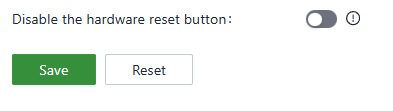
Fig. 5-9-11-5 Disable the hardware reset button
6 Troubleshooting
6.1 Unable to connect to the cellular network
- Ensure that the SIM card is properly installed and valid.
- Check the cellular network signal strength and try moving the router to an area with better signal coverage.
- Ensure that the data plan is still active and not exceeding data limits.
- Restart the device and wait for it to establish a connection.
6.2 Unable to connect to the WAN network
- Check if the cellular network connection is functioning properly and ensure adequate signal strength.
- Verify that the device is correctly configured, including APN settings and username/password, if applicable.
- Use the ping tool to check the connection of the device itself to the Internet.
- Check whether the firewall inbound and outbound rules and MAC address filtering configuration prohibit the address from accessing the network.
- Reconnect the client with the device to regain the address.
6.3 Slow or unstable speeds
- Check the cellular network signal strength and ensure that the router is positioned in an area with strong signal reception.
- Connect the device to the 5Ghz band.
- Update the router firmware to access the latest performance and stability improvements.
7 FAQ
1. Unable to Connect to 4G/5G Network?
1. Physical Environment: Start by checking if the SIM card is inserted into the correct slot and ensure all cellular antennas are properly installed.
2. APN Settings: Make sure that the APN configuration matches the information provided by your service provider.
3. Check Device Connectivity: Log in to the device's local interface and use the built-in ICMP tool to ping 8.8.8.8 to test connectivity. If it can connect, then check the connectivity between your device (e.g., computer or smartphone) and the router.
4. Check SIM Card: Take out the SIM card and insert it into a phone to see if it can connect to the internet.
5. Restart: Try powering off the router, wait a few seconds, and then reconnect the power to retry the network connection.
6. Factory Reset: Perform a factory reset on the router and then attempt to connect again.
If you cannot resolve the issue using the above steps or encounter any other problems, please contact InHand Networks immediately for technical support. You can visit www.inhand.com for more information.
2. Is the cloud platform free of charge?
InHand Networks has been committed to providing high-quality network services for small and medium-sized chain organizations. When users utilize the cloud platform services, they are required to purchase licenses for each device to access the extensive cloud-based features.
3. How to add devices to the cloud platform?
1. Start by registering for a Small Star Cloud Manager login account at https://star.inhandcloud.com/.
2. Log in to the cloud platform using your registered account. Under the device menu, click "Add," and follow the prompts to enter the device's serial number and MAC address. This will complete the device addition process. When a device is added for the first time, it comes with a complimentary 3-year free essential license. Users can renew their licenses as needed in the future.
4. Is it possible to use the device without the cloud platform?
Yes, it is possible. Users can complete the majority of configuration tasks locally. However, for features like bulk configuration deployment, firmware upgrades, and more, you would need to combine local device settings with the cloud platform.
If you are unable to resolve the issue using the above steps or encounter any other problems, please contact InHand Networks for technical support. You can visit www.inhand.com for more information.
Appendix A Warning and cautions in handling the lithium-ion battery
Battery abuse can cause damage to the battery and/or personal injury. To prevent damage or injury from battery leaking, heating and/or explosion, please observe the following precautions before use.
1. Don’t use and leave the cell near a heat source such as fire or heater.
2. Do not use or leave the cell under the blazing sun (or in heated car by sunshine).
3. Do not use or leave the battery at very high temperature conditions (for example, strong direct sunlight or a vehicle in extremely hot conditions). Otherwise, it can overheat or fire or its performance will be degenerate and its service life will be decreased.
4. Do not short circuit, over-charge or over-discharge the cell.
5. Don’t immerse the battery in water and seawater. Please put it in cool and dry environment if no using.
6. Don’t reverse the positive and negative terminals.
7. Do not disassemble or modify the cell.
8.Do not transport and store the battery together with metal objects such as necklaces, hairpins, coins, etc.
9. Do not use the cell with conspicuous damage or deformation.
10. Don’t connect the cell to an electrical outlet directly.
11. If the cell leaks and the electrolyte get into the eyes, don ’ t wipe eyes, instead, thoroughly rinse the eyes with clean running water for at least 15 minutes, and immediately seek medical attention. Otherwise, eyes injury can result.
12. Do not use lithium ion battery and others different lithium battery model in mixture.
13. Keep the battery away from babies.
14. Do not directly solder the battery and pierce the battery with a nail or other sharp object.
15. Do not strike , throw or trample the battery.
16. Don’t bend or fold sealing edge. Don’t open or deform folding edge Don’t fillet the end of the folding edge.
17. Being charged, using the battery charger specifically for that purpose.
18. When disposing of secondary cells, keep cells of different electrochemical systems separate from each other
19. In case the battery terminals are dirt, clean the terminals with a dry cloth before use. Otherwise power failure or charge failure may occur due to the poor connection with the instrument.
20. If the battery gives off an odor, generates heat, becomes discolored or deformed, or in any way appear abnormal during use, recharging or storage, immediately remove it from the device or battery charge and stop using it.
21. The battery replacement shall be done only by either cells supplier or device supplier and never be done by the user.
22. Be aware discharged batteries may cause fire; tape the terminals to insulate them.
23. Do not use it in a location where is electrostatic and magnetic greatly, otherwise, the safety devices may be damaged, causing hidden trouble of safety.
24. Prohibition of use of damaged cells.
25. Battery packed designing and packing Prohibition injury batteries.
26. Don ’t bend or fold sealing edge. Don’t open or deform folding edge Don ’t fillet or impacting the end of the folding edge.
27. Any components contacting these two edges, they must be insulated.
28. Soft film wrapped Li-polymer is a soft cell wrapped by AL-film, it can't be contacted by needle, nail, Ni-tab and the sharp-cut edge of pack material etc.
29. The ultrasonic joining and spot welding are recommended in assembly of the cell. In other case, manual solder, recommended: the temperature of soldering iron can be controlled(≤350℃) and guard against static; soldering tin time≤3s; soldering tin less than 2 times and the second soldering is permitted after the cell seal side cooling.
30. The intensity of electrode isn't high, especially positive electrode is a Al-Ni tap (N-tab ). Prohibit bending it repetitiously. (intensity of drawing<0.5kgf).
31. Prohibit soldering on the seal side (position of jointing is more than 2.0mm from glue of electrode). The high temperature of 60℃ will reduce the intensity of seal result in leak. Prohibit heating the cell directly up top 100℃.
Appendix B Statement
FCC STATEMENT
This device complies with Part 15 of the FCC Rules. Operation is subject to the following two conditions:
(1) This device may not cause harmful interference, and
(2) this device must accept any interference received, including interference that may cause undesired operation.
NOTE 1: This equipment has been tested and found to comply with the limits for a Class B digital device , pursuant to part 15 of the FCC Rules. These limits are designed to provide reasonable protection against harmful interference in a residential installation. This equipment generates, uses and can radiate radio frequency energy and, if not installed and used in accordance with the instructions, installed and used in accordance with the instructions, may cause harmful interference to radio communications. However, there is no guarantee that interference will not occur in a particular installation. If this equipment does cause harmful interference to radio or television reception, which can be determined by turning the equipment off and on, the user is encouraged to try to correct the interference by one or more of the following measures:
- Reorient or relocate the receiving antenna.
- Increase the separation between the equipment and receiver.
-Connect the equipment into an outlet on a circuit different from that to which the receiver is connected.
-Consult the dealer or an experienced radio/TV technician for help.
NOTE 2: Any changes or modifications to this unit not expressly approved by the party responsible for compliance could void the user's authority to operate the equipment.
RF Exposure
The equipment complies with FCC radiation exposure limits set forth for an uncontrolled environment. This device should be installed and operated with minimum distance 20cm between the radiator & your body.
This transmitter must not be co-located or operating in conjunction with any other antenna or transmitter. The availability of some specific channels and/or operational frequency bands is country dependent and firmware programmed at the factory to match the intended destination.
The firmware setting is not accessible by the end user.
IC STATEMENT
This device complies with Industry Canada license-exempt RSS standard(s): Operation is subject to the following Two conditions:
(1) this device may not cause interference, and
(2) This device must accept any interference, including interference that may cause
undesired operation of the device.
Le present appareil est conforme aux CNR d'Industrie Canada applicables aux appareils radio exempts de licence. L'exploitation est autorisée aux deux conditions suivantes :
(1) l'appareil ne doit pas produire de brouillage, et
(2) l'utilisateur de l'appareildoit accepter tout brouillage radioélectrique subi, même si le brouillage est susceptible d'en compromettre le fonctionnement.
CAN ICES-3 (B)
Avis d’Industrie Canada
Le présent appareil est conforme aux CNR d'industrie Canada applicables aux appareils radio exem pts de licence L'exploitation est autorisée aux deux conditions suivantes:
1) I'appareil ne doit pas produire de brouillage; et
2) I'utillsateur de I'appareil doit accepterbrouillage radioélectrique subi meme si le brouillage est susceptible d'encompromettre le fonctionnement. mauvais fonctionnement de I'appareil.
Cet appareil numériquie de la classe B est conforme à la norme NMB-003 du Canada.
CAN NMB-3 (B)
Radiation Exposure Statement:
This equipment complies with IC radiation exposure limits set forth for an uncontrolled environment. This equipment should be installed and operated with minimum distance 20cm between the radiator & your body.
Déclaration d'exposition aux radiations:
Cet équipement est conforme aux limites d'exposition aux rayonnements IC établies pour un environnement non contrôlé. Cet équipement doit être installé et utilisé avec un minimum de 20cm de distance entre la source de rayonnement et votre corps.
Related Articles
EAP600 Product User Manual
Declarations Thank you for choosing our company's product! Before use, please carefully read this user manual. By complying with the following statements, you will help maintain intellectual property rights and legal compliance, ensuring that your ...5G CPE02 User Manual
Declaration Thank you for choosing our company's product! Before use, please carefully read this user manual. By complying with the following statements, you will help maintain intellectual property rights and legal compliance, ensuring that your ...5G ODU2002 Product User Manual
Declaration Thank you for choosing our company's product! Before use, please carefully read this user manual. By complying with the following statements, you will help maintain intellectual property rights and legal compliance, ensuring that your ...5G ODU12 Product User Manual
Declaration Thank you for choosing our company's product! Before use, please carefully read this user manual. By complying with the following statements, you will help maintain intellectual property rights and legal compliance, ensuring that your ...5G FWA02 Product User Manual
Declaration Thank you for choosing our company's product! Before use, please carefully read this user manual. By complying with the following statements, you will help maintain intellectual property rights and legal compliance, ensuring that your ...